Initial Settings : Use Web Admin Console |
Cockpit Admin Console is installed with CentOS Stream 9 Base Environment [Server] or others. It's possible to manage your CentOS Stream server on a Web browser to enable it. | |
| [1] | On console login prompt, as message is shown like [Activate the web console ***], it's possible to use Admin Console to enable it. |
[root@dlp ~]# [root@dlp ~]# systemctl enable --now cockpit.socket ss -napt State Recv-Q Send-Q Local Address:Port Peer Address:PortProcess
LISTEN 0 128 0.0.0.0:22 0.0.0.0:* users:(("sshd",pid=733,fd=3))
LISTEN 0 4096 *:9090 *:* users:(("systemd",pid=1,fd=46))
LISTEN 0 128 [::]:22 [::]:* users:(("sshd",pid=733,fd=4))
# Cockpit listens 9090 port
# if Firewalld is running, confirm inbound settings (generally cockpit is allowed by default) [root@dlp ~]# firewall-cmd --list-service cockpit dhcpv6-client ssh # if [cockpit] is not allowed, set it to allow [root@dlp ~]# firewall-cmd --add-service=cockpit success [root@dlp ~]# firewall-cmd --runtime-to-permanent success |
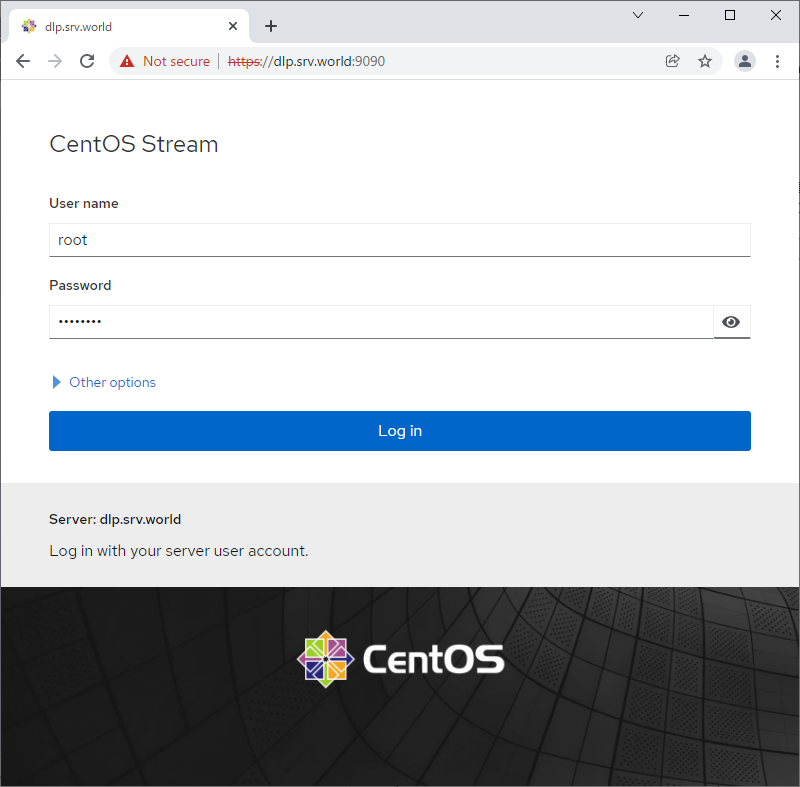
| [2] | Access to [https://(server's hostname or IP address):9090/] with Web browser from localhost or other Client compuers, then Cockpit login form is displayed like follows. Login with a local user on your Server. (It uses root user on this example) |
 |
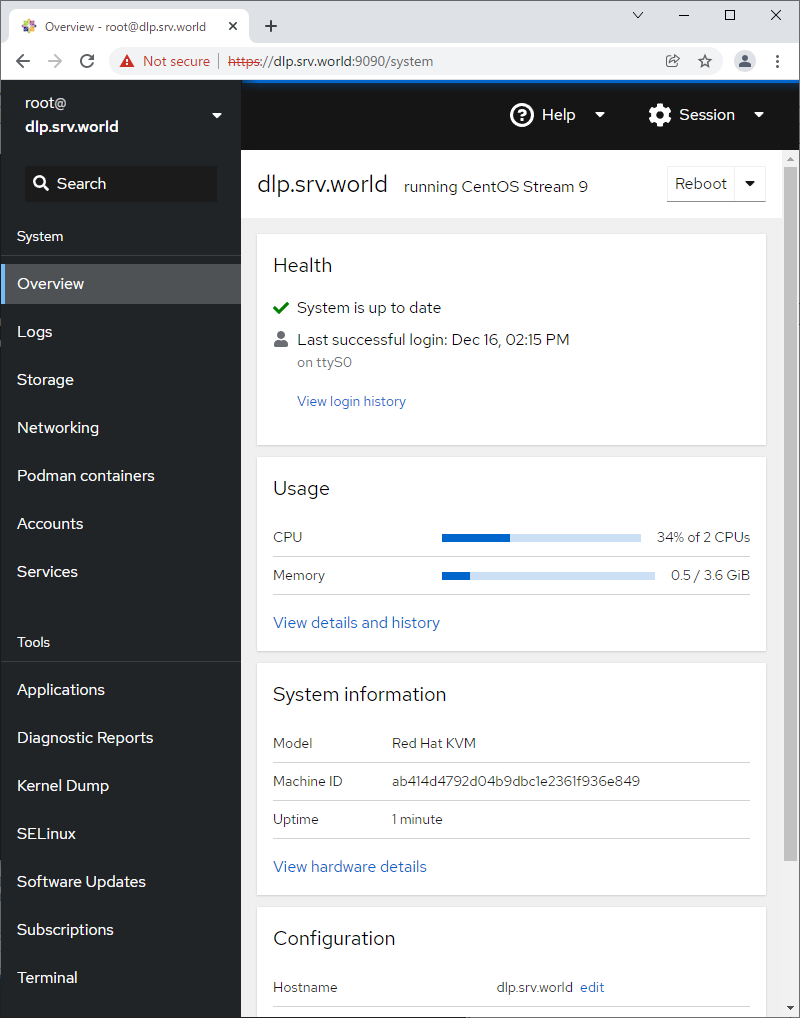
| [3] | This is the Cockpit index page. It's possible to manage various system settings on here. |
 |
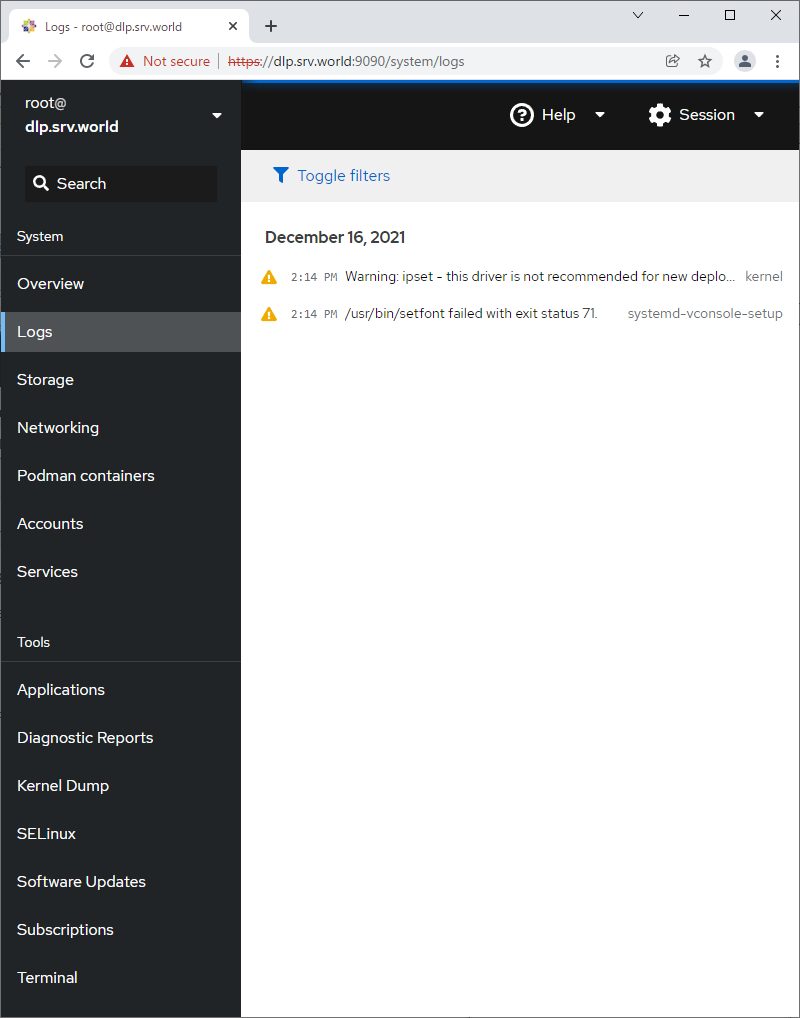
| [4] | For [Logs] on the left pane, it's possible to manage or operate [Journal] service that is the log management tool. |
 |
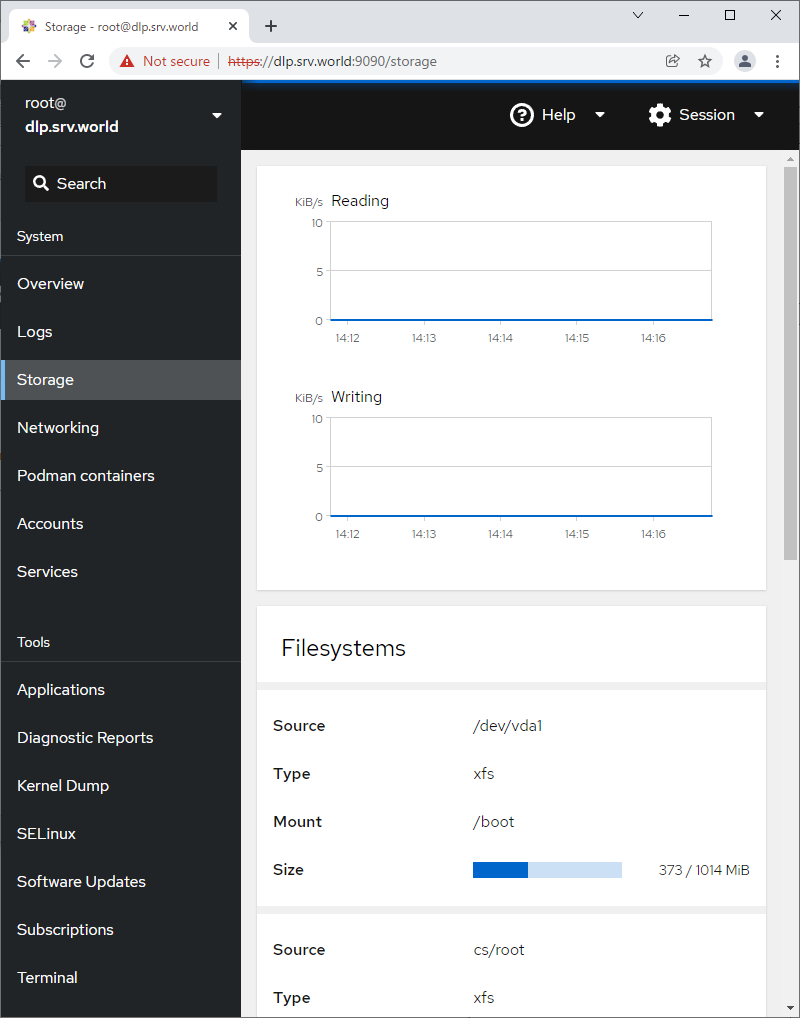
| [5] | For [Storage] on the left pane, it's possible to manage or operate Storages. |
 |
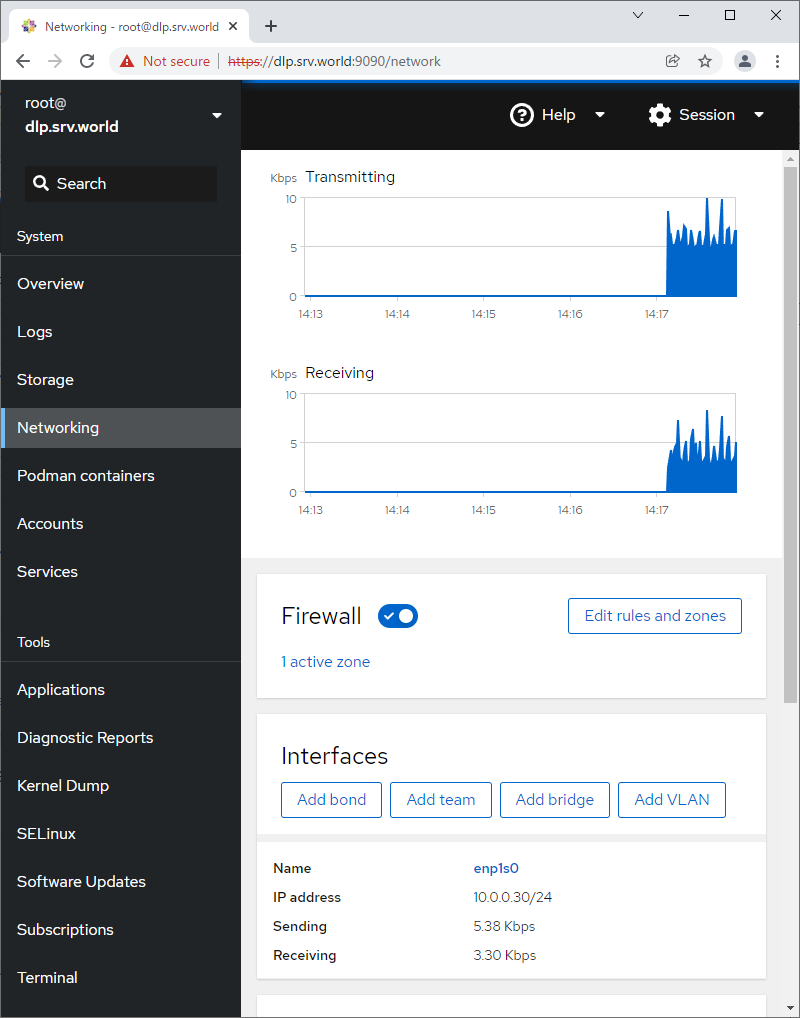
| [6] | For [Networking] on the left pane, it's possible to manage or operate Network settings. |
 |
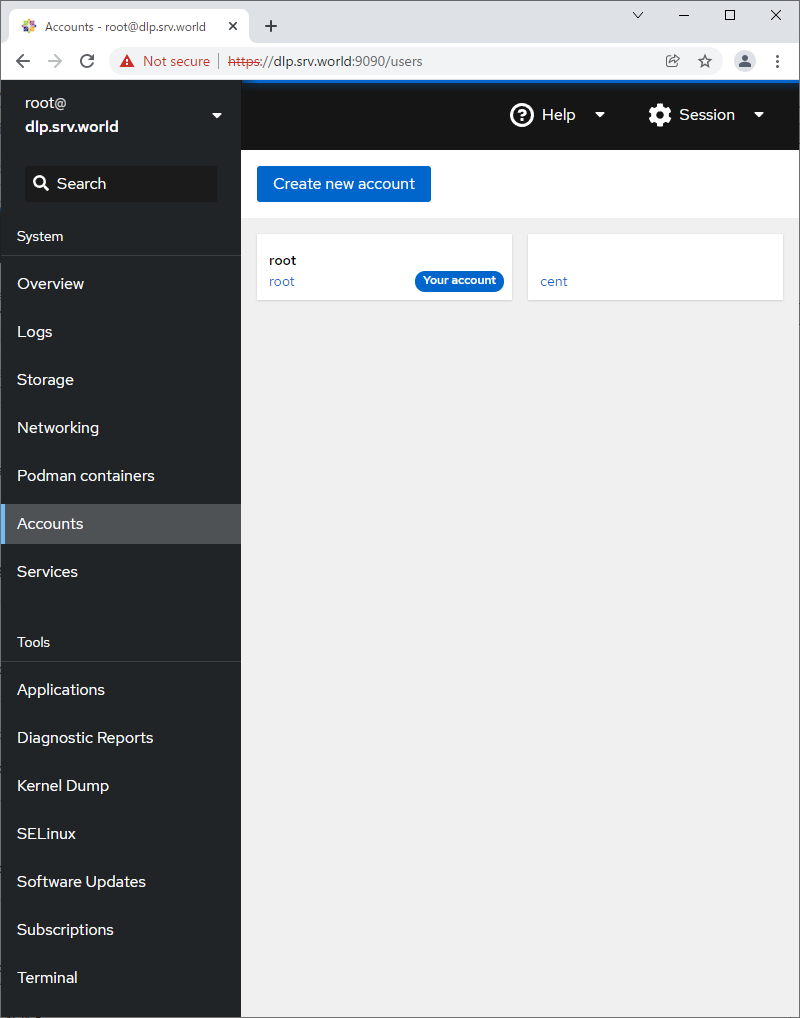
| [7] | For [Accounts] on the left pane, it's possible to manage or operate system accounts. |
 |
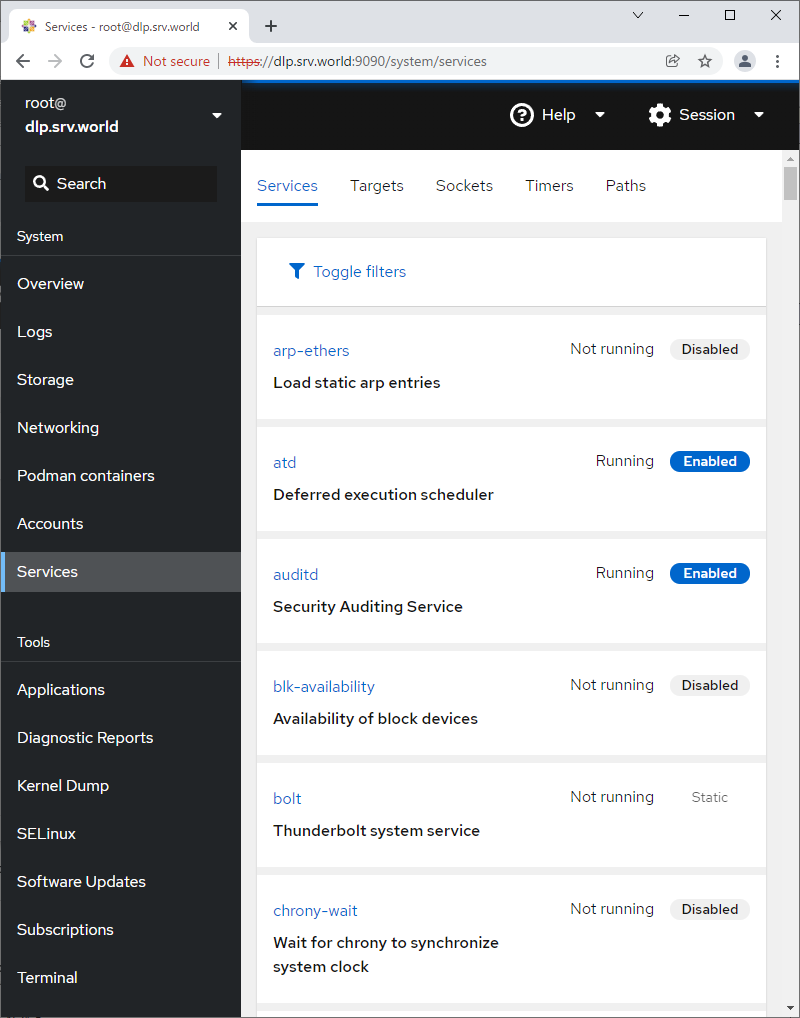
| [8] | For [Services] on the left pane, it's possible to manage or operate system services. |
 |
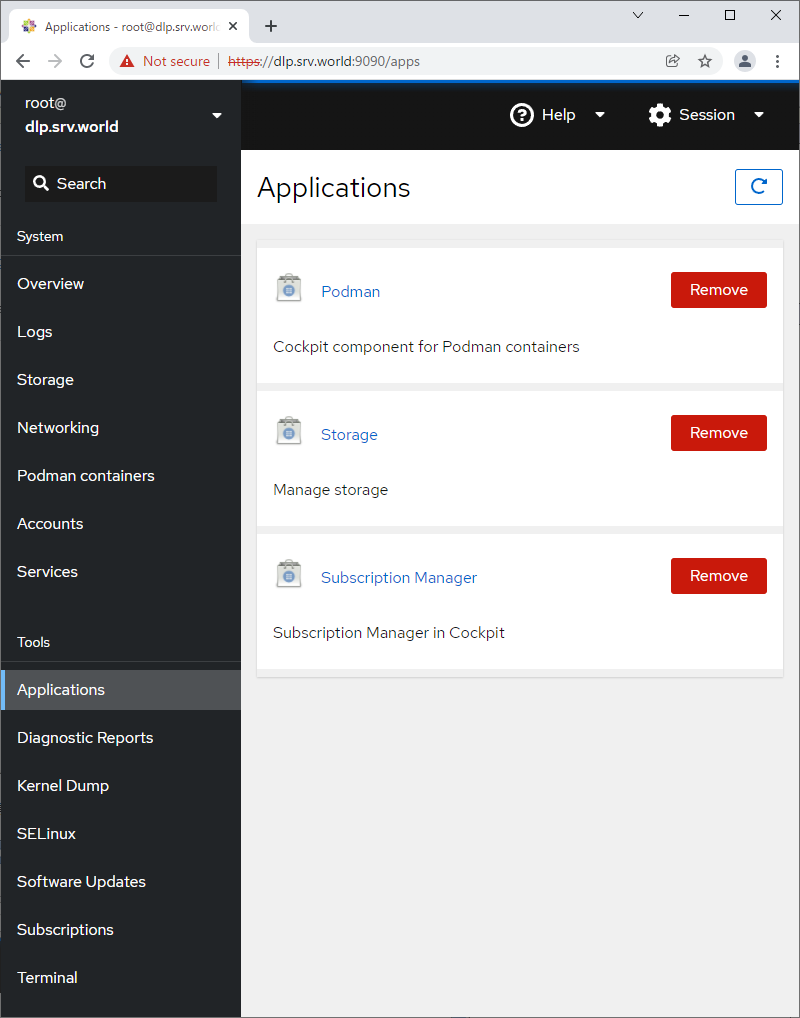
| [9] | For [Applications] on the left pane, it's possible to install or remove applications. |
 |
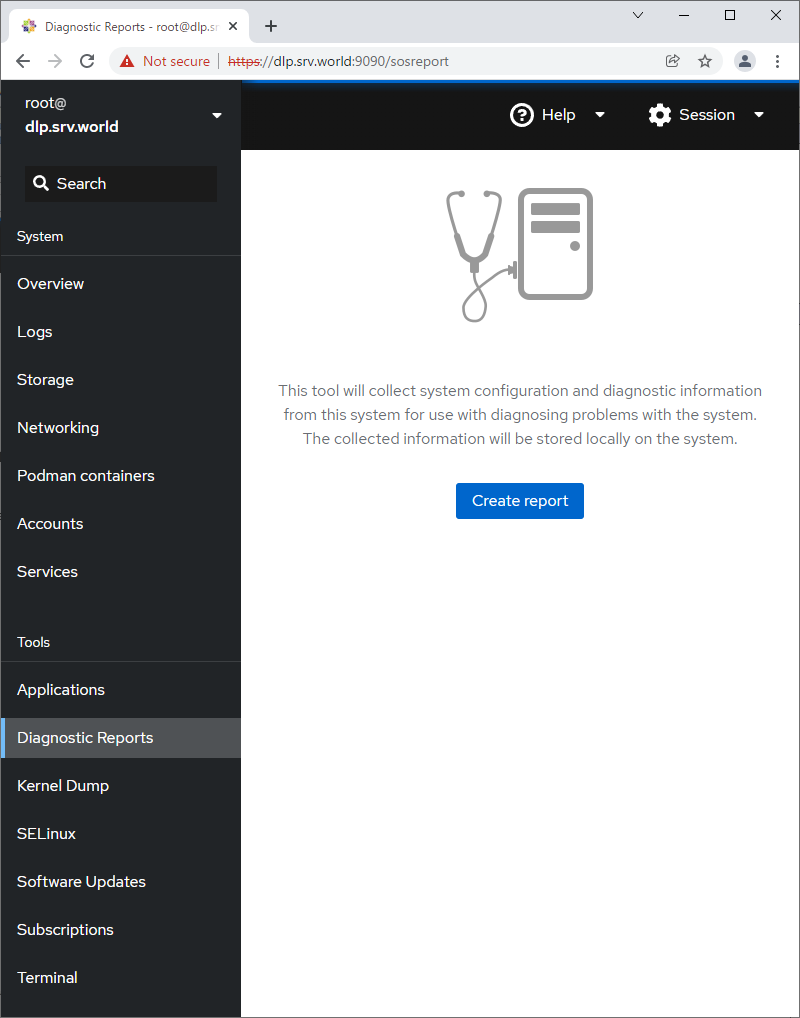
| [10] | For [Diagnostic Reports] on the left pane, it's possible to create or display System Diagnostic Reports. |
 |
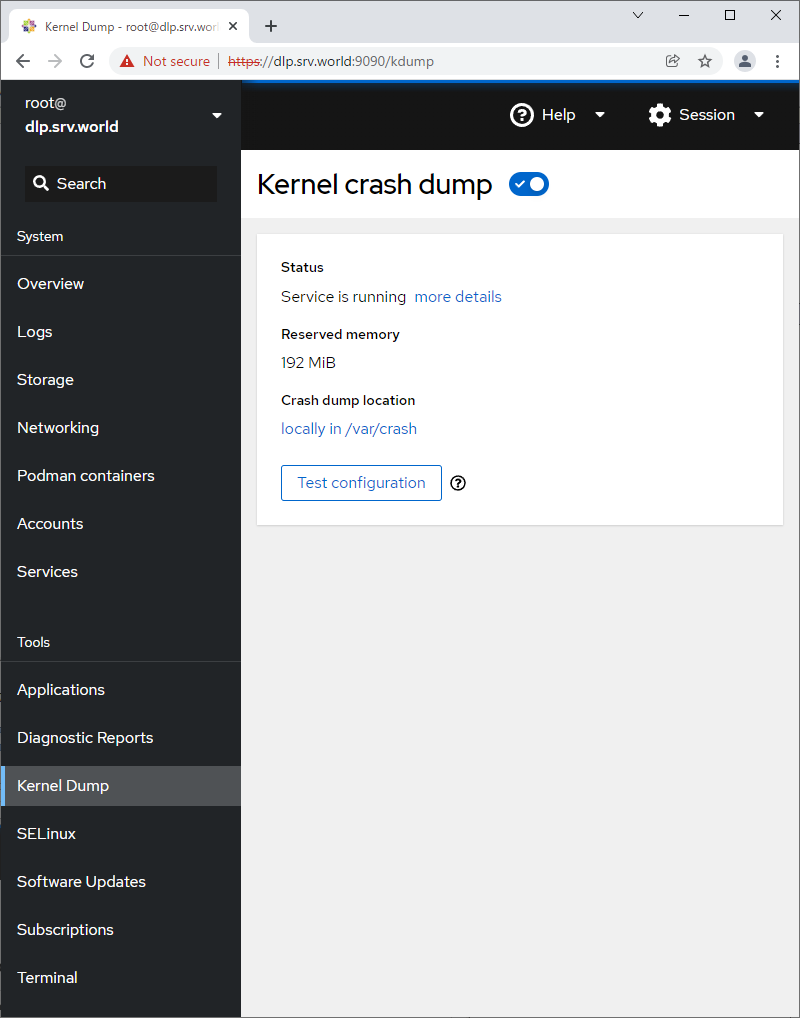
| [11] | For [Kernel Dump] on the left pane, it's possible to display Kernel Dump status. (based on [kdump] service is running state) |
 |
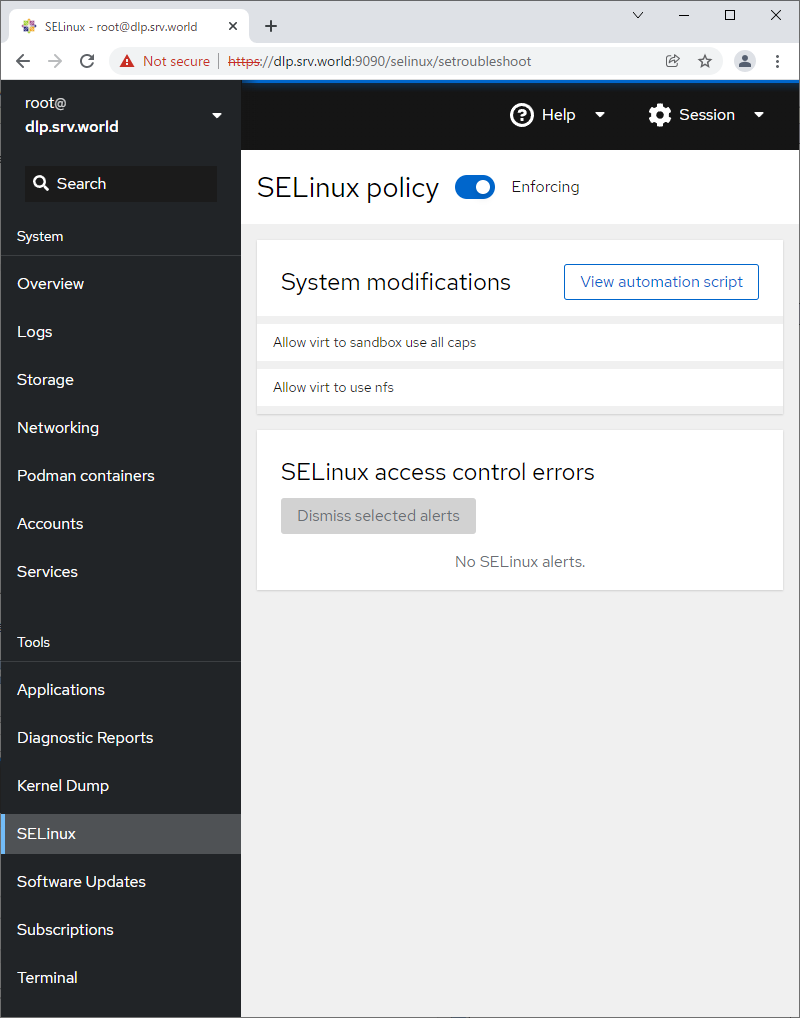
| [12] | For [SELinux] on the left pane, it's possible to display SELinux alert logs. (based on SELinux enabled state) |
 |
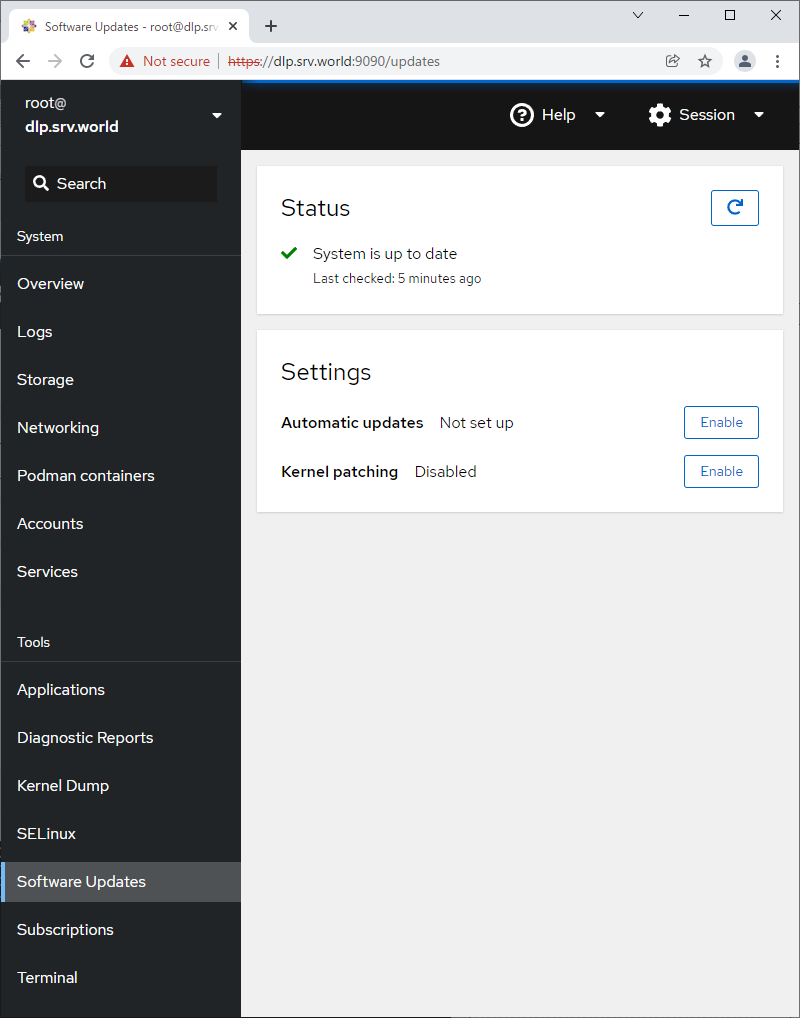
| [13] | For [Software Updates] on the left pane, it's possible to confirm updates or run update packages. |
 |
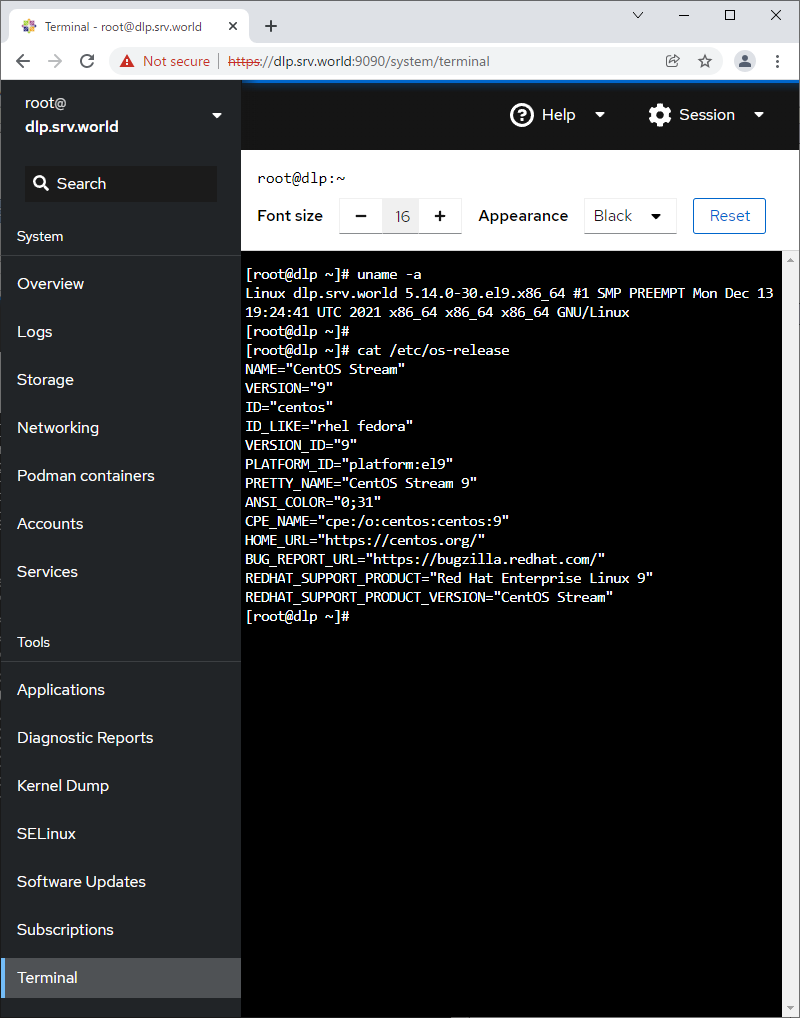
| [14] | For [Terminal] on the left pane, it's possible to operate system with commands directly. |
 |

No comments:
Post a Comment