# create a directory for VM root@dlp:~# # create a VM
root@dlp:~# VBoxManage createvm \
--name Debian_13 \
--ostype Debian_64 \
--register \
--basefolder /var/lib/vbox
Virtual machine 'Debian_13' is created and registered.
UUID: b3c73f51-a5ed-4a4d-8c5c-1b8cffa29ea4
Settings file: '/var/lib/vbox/Debian_13/Debian_13.vbox'

# modify settings for VM
# replace interface name [enp1s0] to your own environment
root@dlp:~# VBoxManage modifyvm Debian_13 \
--cpus 4 \
--memory 4096 \
--nic1 bridged \
--bridgeadapter1 enp1s0 \
--boot1 dvd \
--graphicscontroller vmsvga \
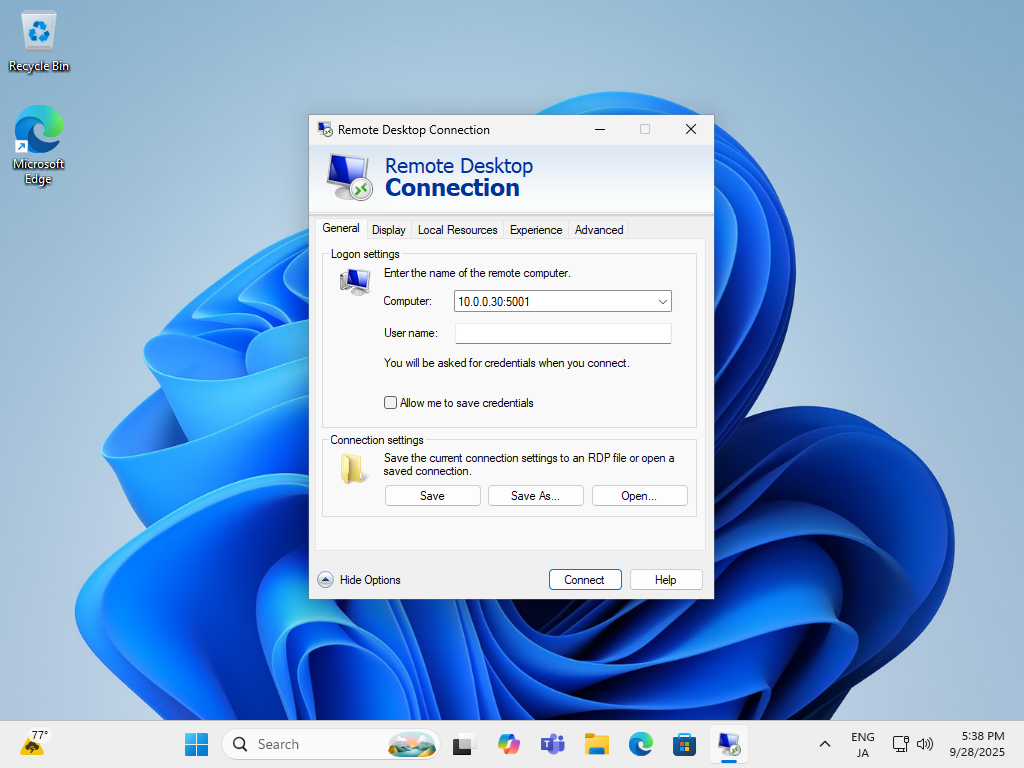
--vrde on \
--vrdeport 5001

# configure storage for VM
root@dlp:~# VBoxManage storagectl Debian_13 --name "Debian_13_SATA" --add sata
root@dlp:~# VBoxManage createhd \
--filename /var/lib/vbox/Debian_13/Debian_13.vdi \
--size 20480 \
--format VDI \
--variant Standard
0%...10%...20%...30%...40%...50%...60%...70%...80%...90%...100%
Medium created. UUID: e15650f9-5de6-4522-b898-591900b66561

root@dlp:~# VBoxManage storageattach Debian_13 \
--storagectl Debian_13_SATA \
--port 1 \
--type hdd \
--medium /var/lib/vbox/Debian_13/Debian_13.vdi

# configure DVD drive for VM
# example below, it specifies an ISO file for installation
root@dlp:~# VBoxManage storageattach Debian_13 \
--storagectl Debian_13_SATA \
--port 0 \
--type dvddrive \
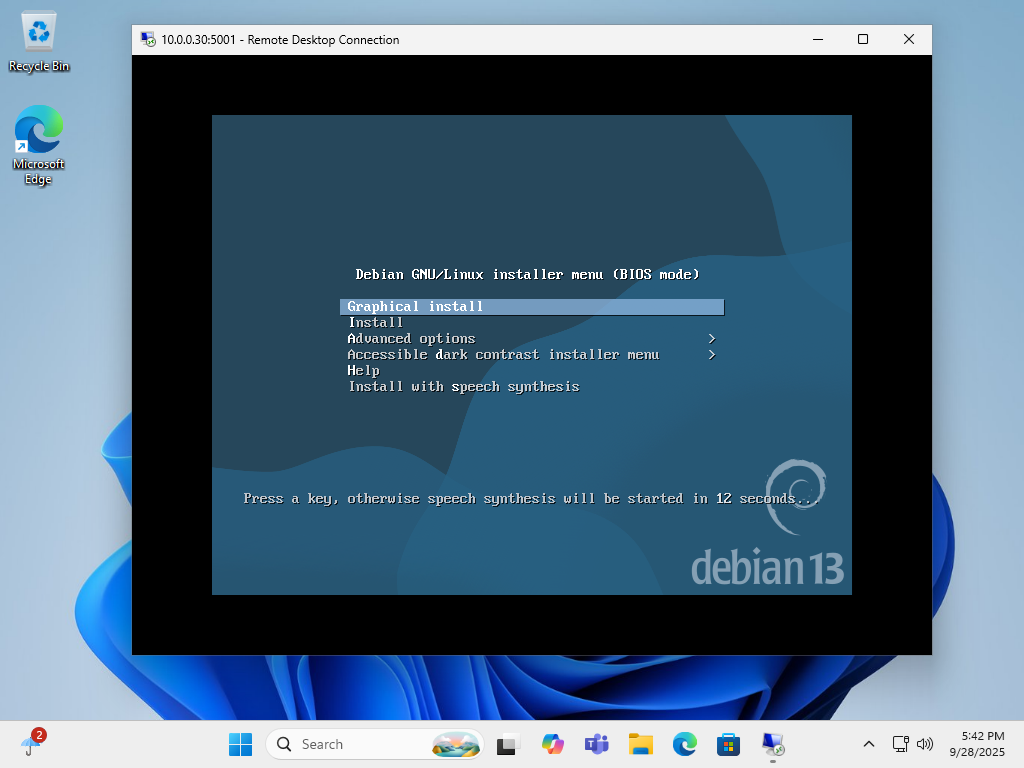
--medium /home/debian-13.0.0-amd64-DVD-1.iso

# confirm settings for VM
root@dlp:~# VBoxManage showvminfo Debian_13
Name:                        Debian_13
Encryption:                  disabled
Groups:                      /
Platform Architecture:       x86
Guest OS:                    Debian (64-bit)
UUID:                        b3c73f51-a5ed-4a4d-8c5c-1b8cffa29ea4
Config file:                 /var/lib/vbox/Debian_13/Debian_13.vbox
Snapshot folder:             /var/lib/vbox/Debian_13/Snapshots
Log folder:                  /var/lib/vbox/Debian_13/Logs
Hardware UUID:               b3c73f51-a5ed-4a4d-8c5c-1b8cffa29ea4
Memory size:                 4096MB
Page Fusion:                 disabled
VRAM size:                   8MB
CPU exec cap:                100%
CPUProfile:                  host
Chipset:                     piix3
Firmware:                    BIOS
Number of CPUs:              4
HPET:                        disabled
PAE:                         disabled
Long Mode:                   enabled
Triple Fault Reset:          disabled
APIC:                        enabled
X2APIC:                      enabled
Nested VT-x/AMD-V:           disabled
CPUID overrides:             None
Hardware Virtualization:     enabled
Nested Paging:               enabled
Large Pages:                 disabled
VT-x VPID:                   enabled
VT-x Unrestricted Exec.:     enabled
AMD-V Virt. Vmsave/Vmload:   enabled
CPUID Portability Level:     0
Boot menu mode:              message and menu
.....
.....
# * if detach DVD, run like follows
root@dlp:~# VBoxManage storageattach Debian_13 --storagectl Debian_13_SATA --port 0 --device 0 --medium none
| 

No comments:
Post a Comment