Apache httpd : Blog System : WordPress2022/06/17 |
Install the Blog System, WordPress. | |
| [1] | |
| [2] | |
| [3] | Install other required PHP modules. |
[root@www ~]# dnf -y install php-pear php-mbstring php-pdo php-gd php-mysqlnd php-enchant enchant hunspell [root@www ~]# vi /etc/php-fpm.d/www.conf ;; add to the end
;; maybe you need to configure parameters below for your usage
php_value[max_execution_time] = 600
php_value[memory_limit] = 2G
php_value[post_max_size] = 2G
php_value[upload_max_filesize] = 2G
php_value[max_input_time] = 600
php_value[max_input_vars] = 2000
php_value[date.timezone] = Asia/Tokyo
systemctl restart php-fpm |
| [4] | Create a User and Database on MariaDB for WordPress. |
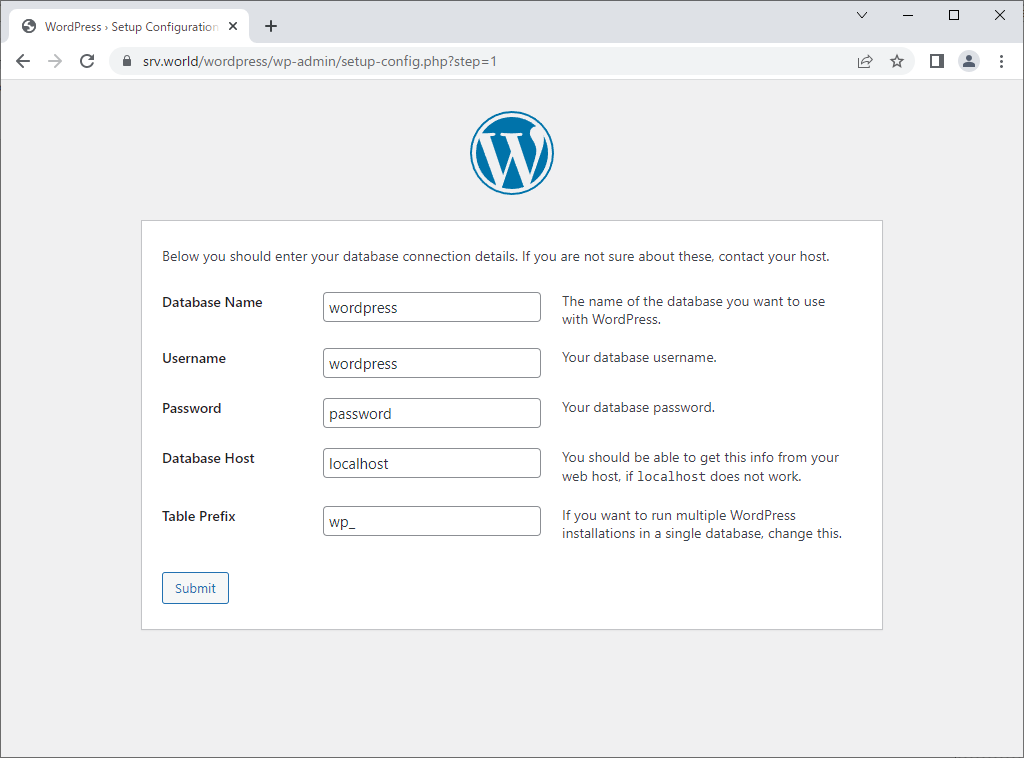
| [root@www ~]# mysql Welcome to the MariaDB monitor. Commands end with ; or \g. Your MariaDB connection id is 10 Server version: 10.5.13-MariaDB MariaDB Server Copyright (c) 2000, 2018, Oracle, MariaDB Corporation Ab and others. Type 'help;' or '\h' for help. Type '\c' to clear the current input statement. MariaDB [(none)]> create database wordpress; Query OK, 1 row affected (0.00 sec) MariaDB [(none)]> grant all privileges on wordpress.* to wordpress@'localhost' identified by 'password'; Query OK, 0 rows affected (0.00 sec) MariaDB [(none)]> exit Bye |
| [5] | Configure Apache httpd for WordPress. |
| [root@www ~]# wget https://wordpress.org/latest.tar.gz [root@www ~]# tar zxvf latest.tar.gz -C /var/www/ [root@www ~]# chown -R apache. /var/www/wordpress [root@www ~]# vi /etc/httpd/conf.d/wordpress.conf Timeout 600
ProxyTimeout 600
Alias /wordpress "/var/www/wordpress/"
DirectoryIndex index.php index.html index.htm
<Directory "/var/www/wordpress">
Options FollowSymLinks
AllowOverride All
Require all granted
</Directory>
systemctl reload httpd |
| [6] | If SELinux is enabled, allow policy. |
| [root@www ~]# setsebool -P httpd_can_network_connect on [root@www ~]# setsebool -P domain_can_mmap_files on [root@www ~]# setsebool -P httpd_unified on |
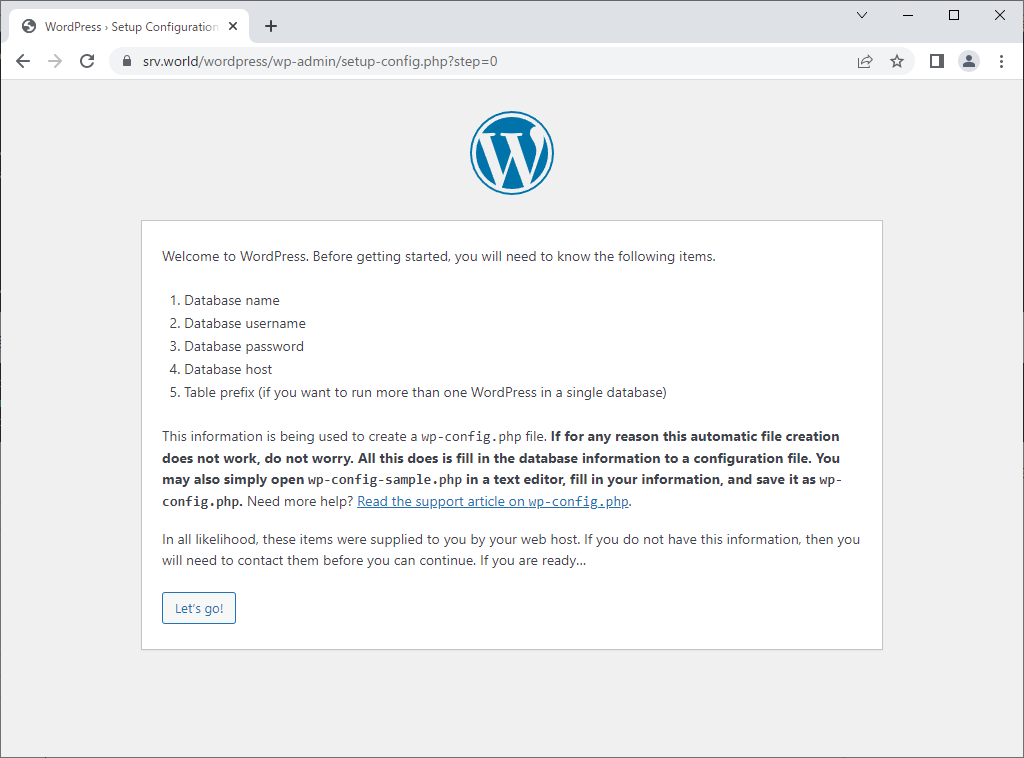
| [7] | Access to the URL [https://(Server's Hostname or IP address)/wordpress/] with Web browser on any Client, then following screen is displayed. Click [Let's go!] button. |
 |
| [8] | Configure Database connection information. Specify MariaDB user and database you added on [4]. |
 |
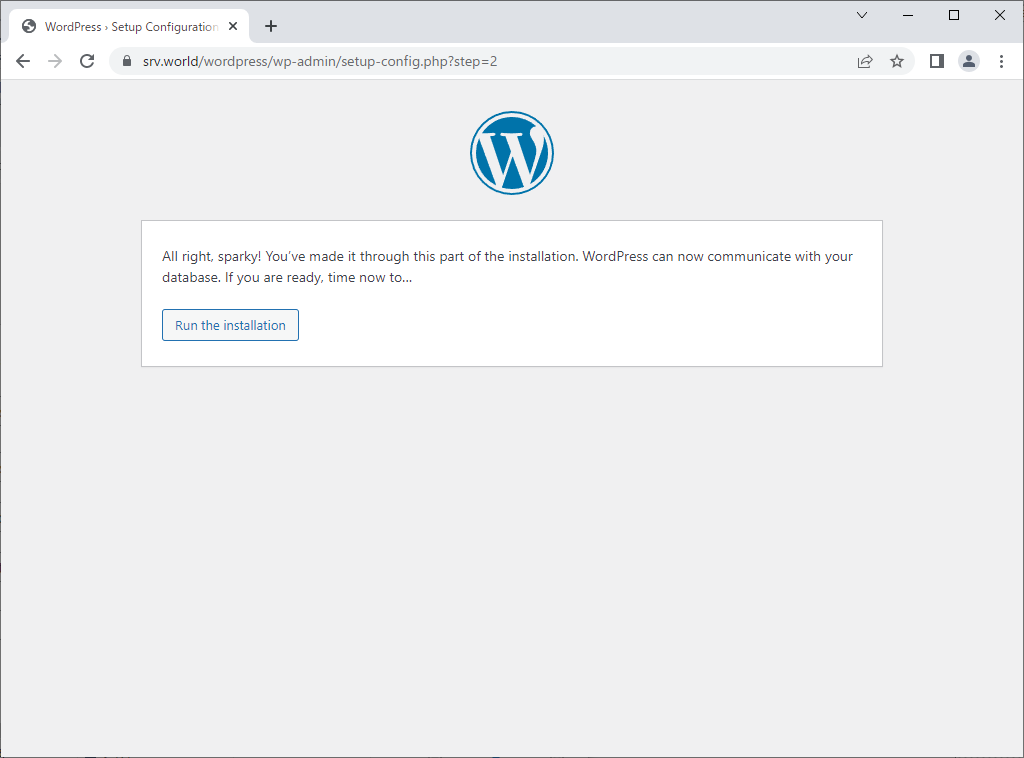
| [9] | Click the [Run the installation] button. |
 |
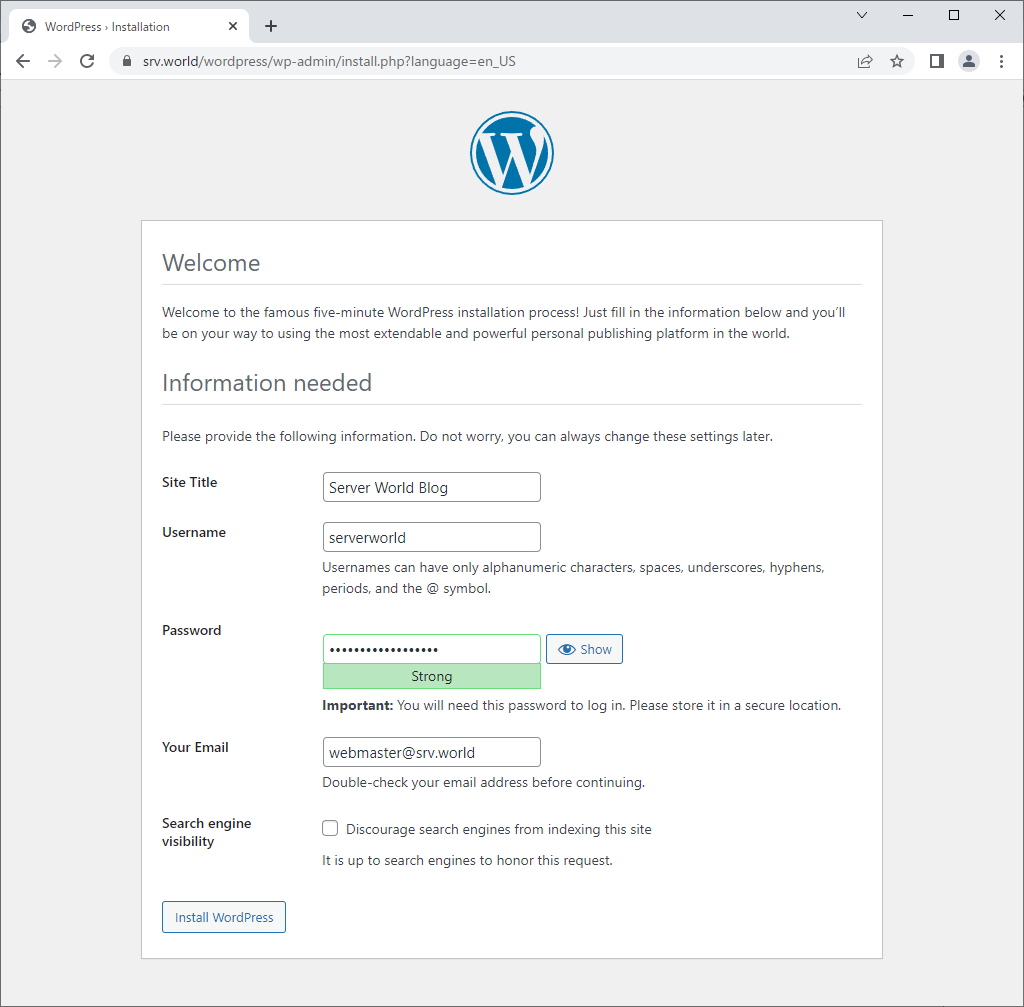
| [10] | Set Blog site title and Administrative user account for WordPress. |
 |
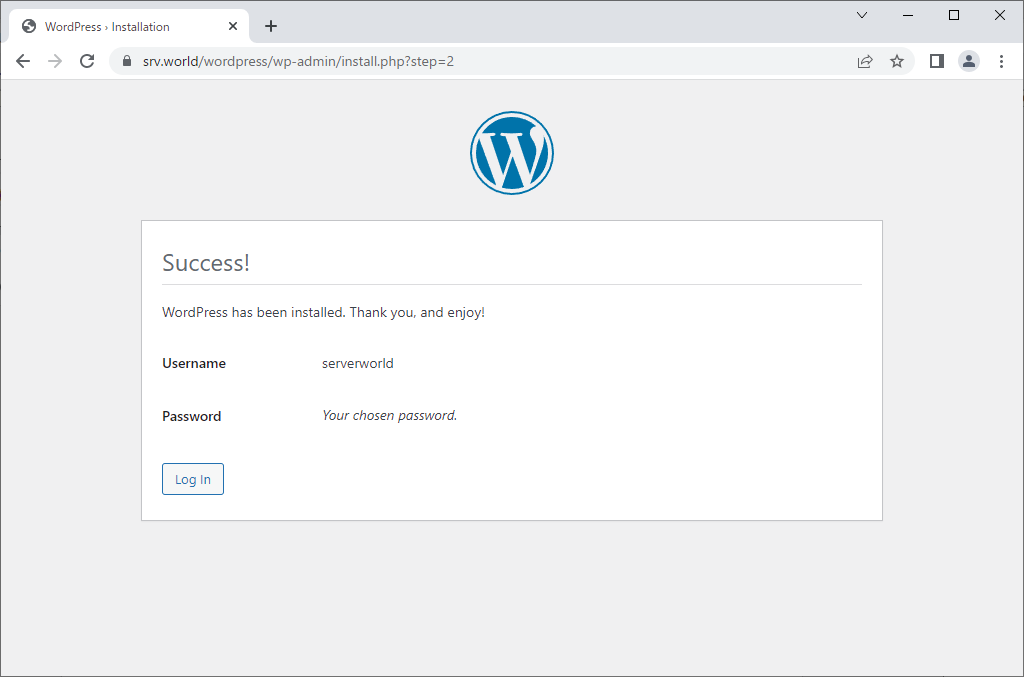
| [11] | That's OK if [Success!] is displayed like follows. Click the [Log in] button. |
 |
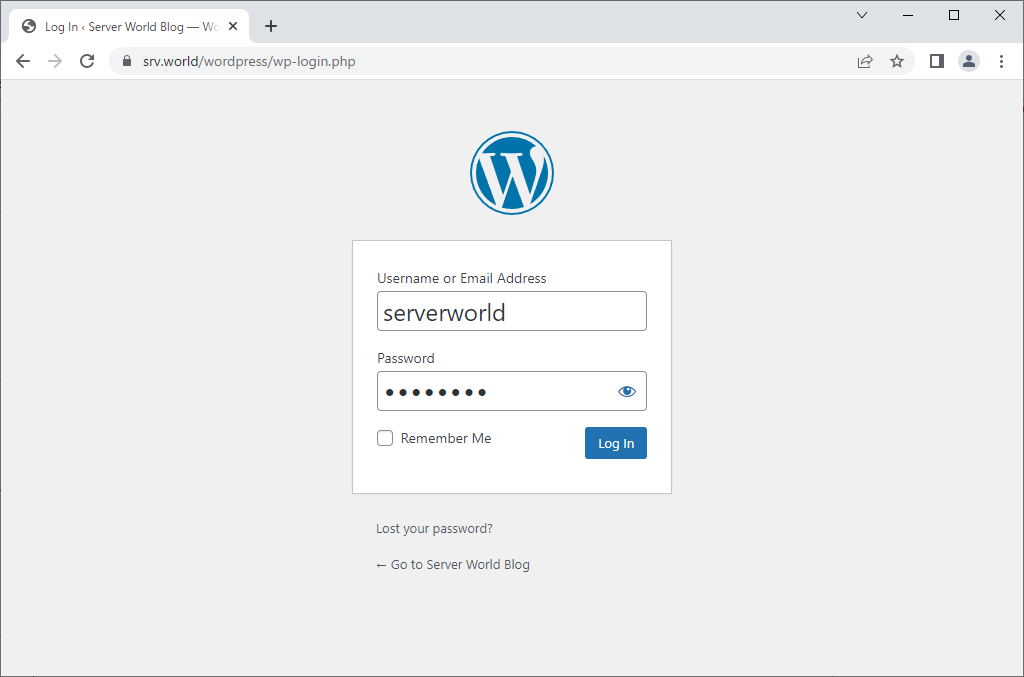
| [12] | Login with the administrative user you added in [9]. |
 |
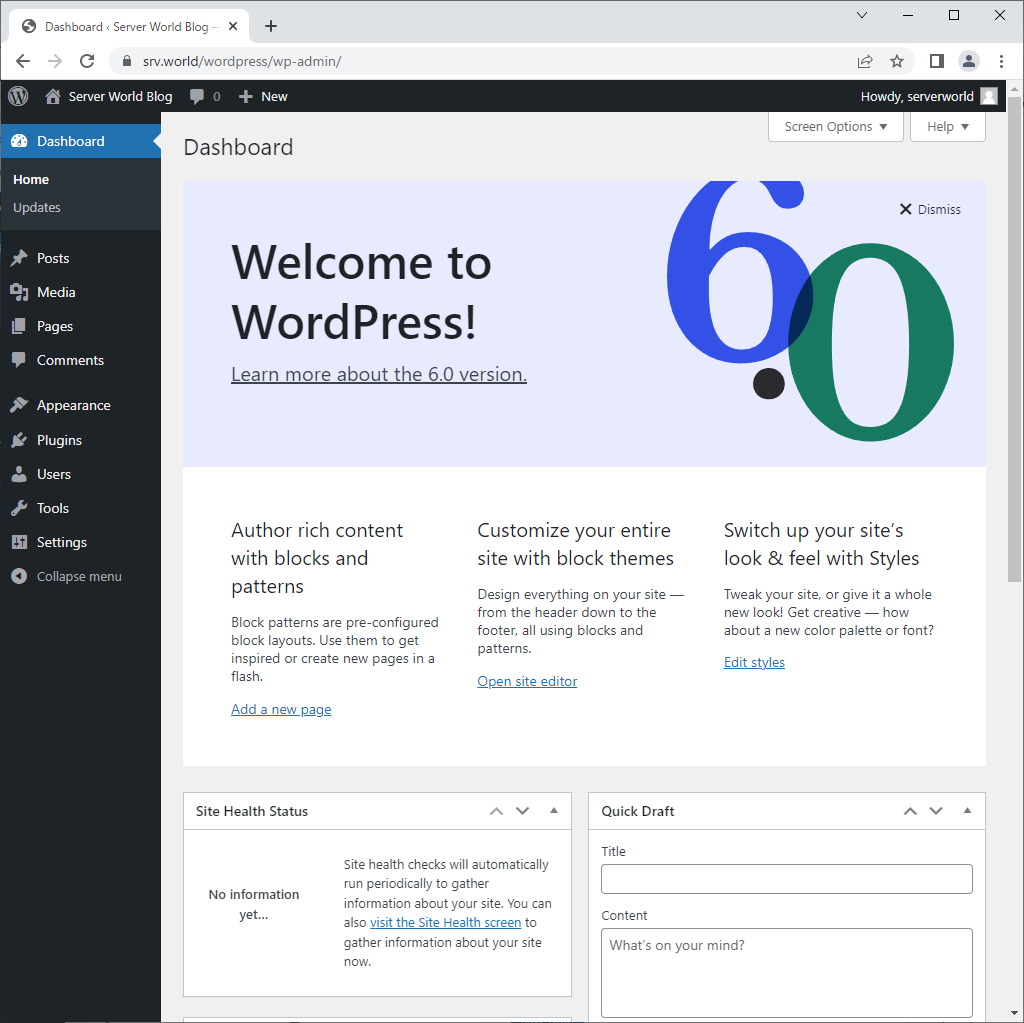
| [13] | This is the WordPress management site. You can add daily posts and other many tasks on here. |
 |
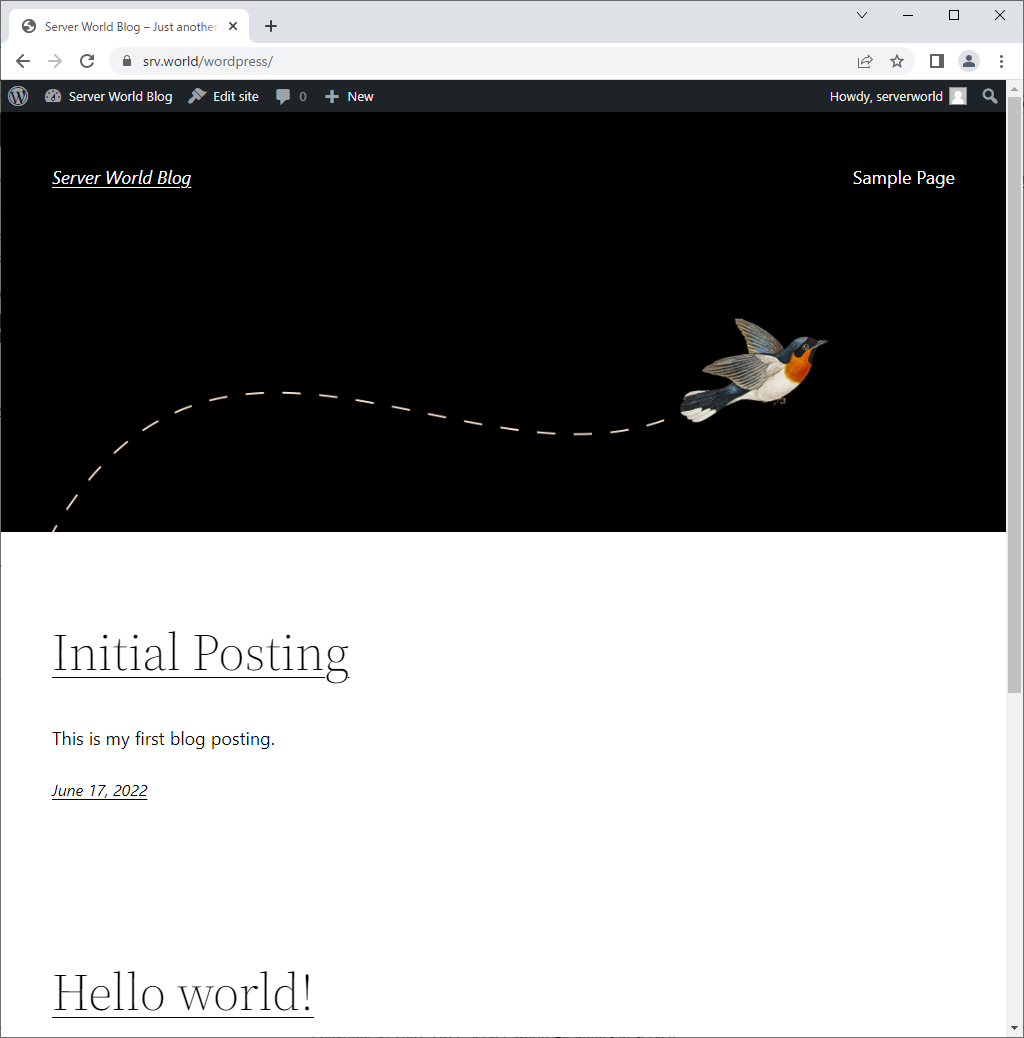
| [14] | For Blog's top page, it's [(your server's hostname or IP address)/wordpress/]. Try to add a post to verify working normally. |
 |

No comments:
Post a Comment