OpenStack Epoxy : Create Instances (Windows) |
Create and Start Virtual Machine Instance that Windows is installed. | |
| [1] | Create Windows image on a Compute Node and add it to Glance. For example on here, it creates Windows Server 2025 image. Download Windows Server 2025 installation ISO beforehand. |
# download VirtIO driver for Windows root@dlp ~(keystone)# wget https://fedorapeople.org/groups/virt/virtio-win/direct-downloads/stable-virtio/virtio-win.iso -O /home/virtio-win.iso root@dlp ~(keystone)# virsh net-start default # install Windows root@dlp ~(keystone)# virt-install \
--name Win2k25 \
--ram 6144 \
--disk path=/var/lib/libvirt/images/Win2k25.img,size=40,bus=virtio \
--disk path=/home/virtio-win.iso,device=cdrom \
--vcpus 4 \
--os-variant win2k25 \
--network default,model=virtio \
--graphics vnc,listen=0.0.0.0,password=password \
--video vga \
--cdrom /home/Win2k25_26100.1742.240906-0331.ge_release_svc_refresh_SERVER_EVAL_x64FRE_en-us.iso
# if enable secure boot, specify like follows root@dlp ~(keystone)# virt-install \
--name Win2k25 \
--ram 6144 \
--disk path=/var/lib/libvirt/images/Win2k25.img,size=40,bus=virtio \
--disk path=/home/virtio-win.iso,device=cdrom \
--cpu host-passthrough \
--vcpus=4 \
--os-variant win2k25 \
--network default,model=virtio \
--graphics vnc,listen=0.0.0.0,password=password \
--video virtio \
--cdrom /home/Win2k25_26100.1742.240906-0331.ge_release_svc_refresh_SERVER_EVAL_x64FRE_en-us.iso \
--features kvm_hidden=on,smm=on \
--boot loader=/usr/share/OVMF/OVMF_CODE_4M.secboot.fd,loader_ro=yes,loader_type=pflash,nvram_template=/usr/share/OVMF/OVMF_VARS_4M.fd
|
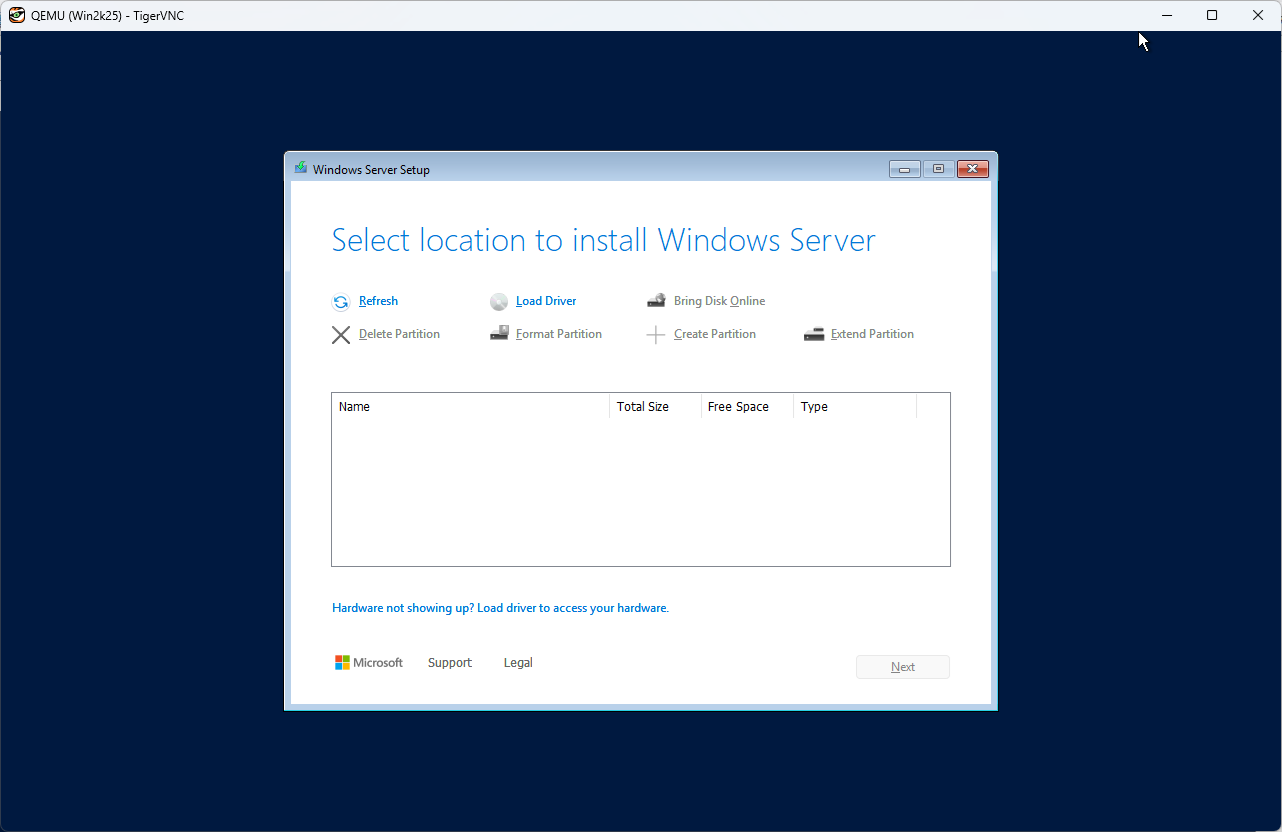
| [2] | During the installation, load VirtIO driver to detect disks. Click the [Load driver] link. |
 |
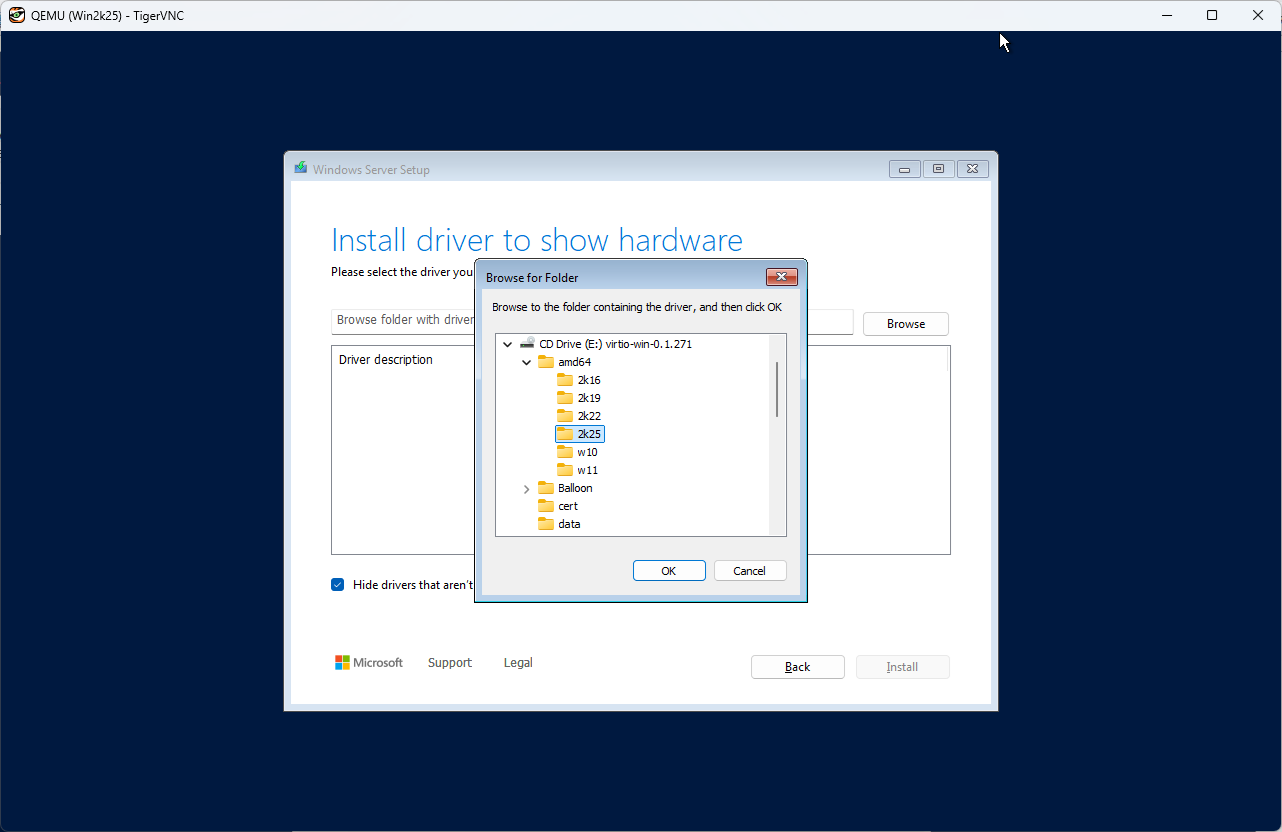
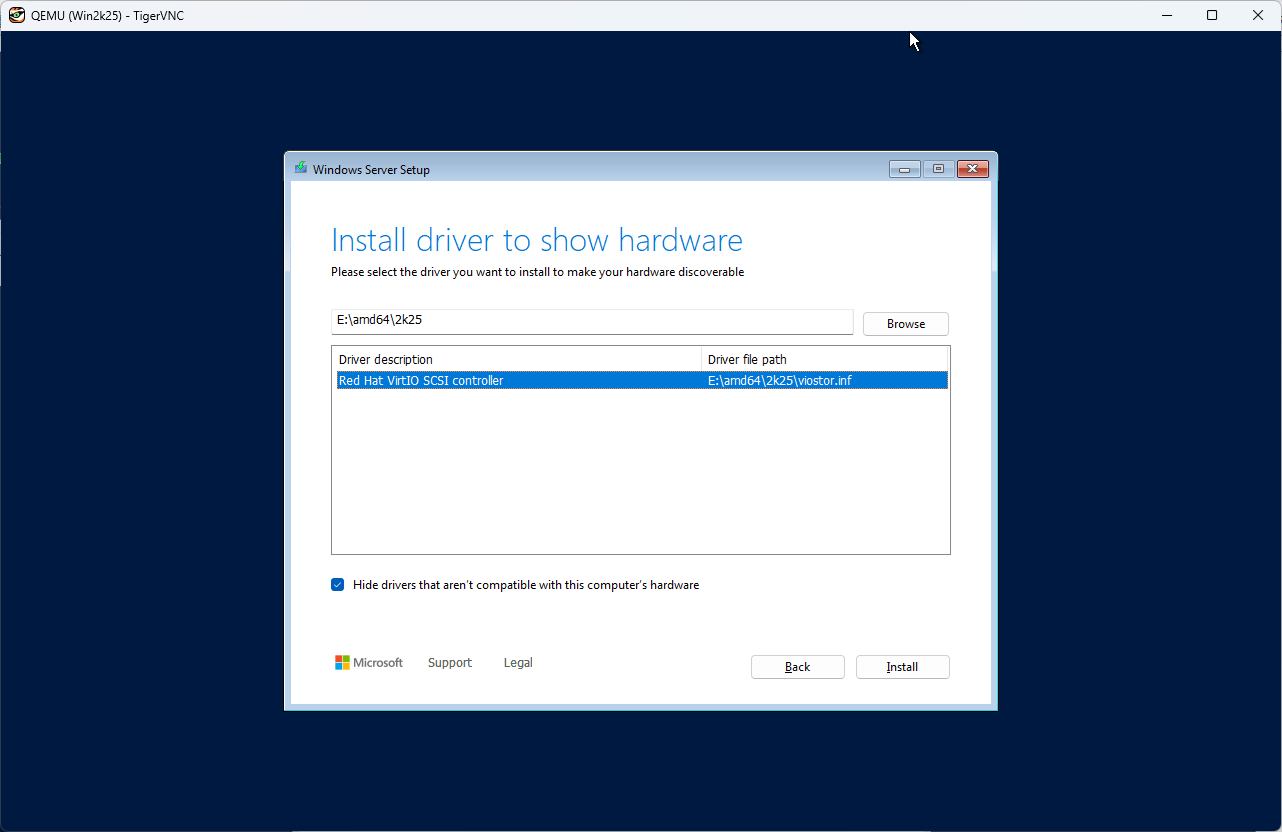
| [3] | Specify a folder under the [virtio-win.iso]. For the case of x64 System, specify the folder [amd64] - [2k25]. After that, proceed installation steps with common procedure. |
 |
 |
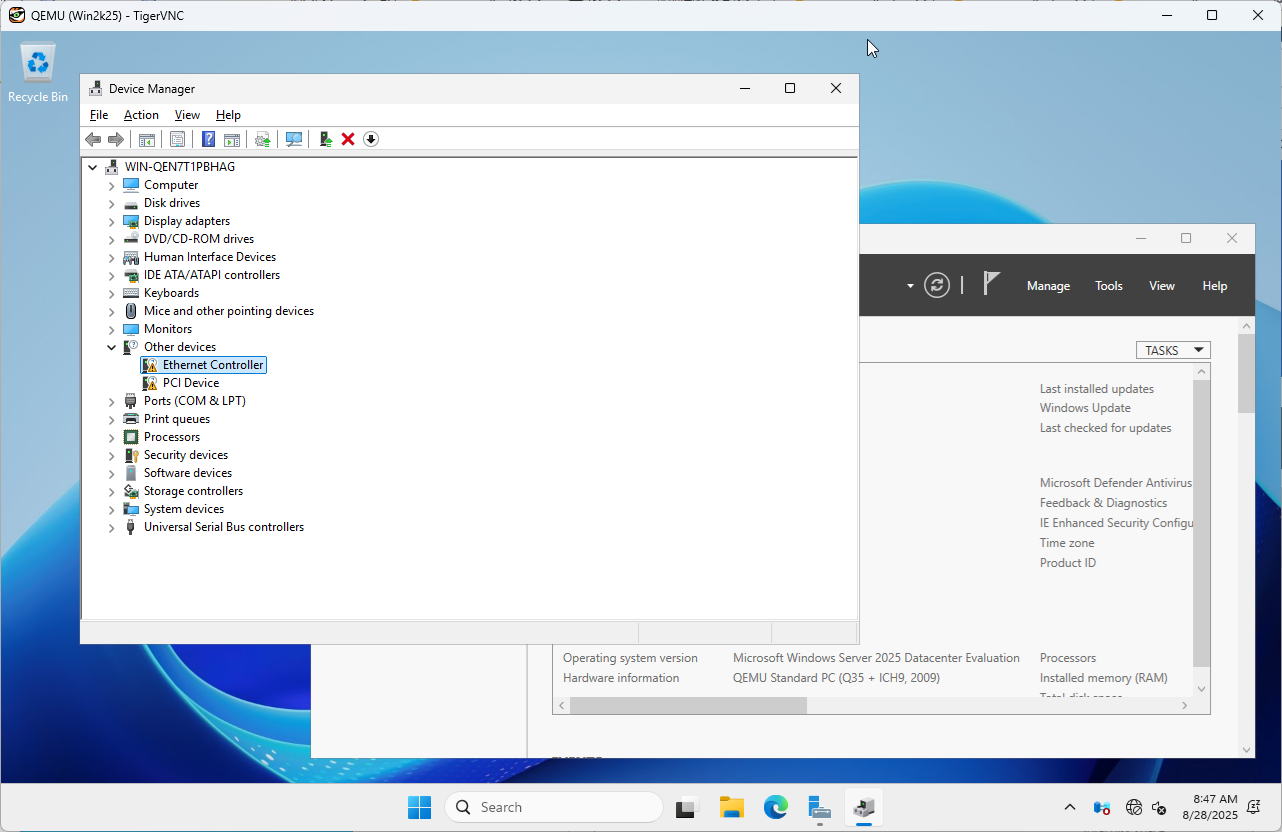
| [4] | After finishing installation, logon to the Windows and apply VirtIO driver to the network device. For others, if you need, apply VirtIO driver to display device and PCI device. Also, since Sysprep will be run later, apply any Windows updates. |
 |
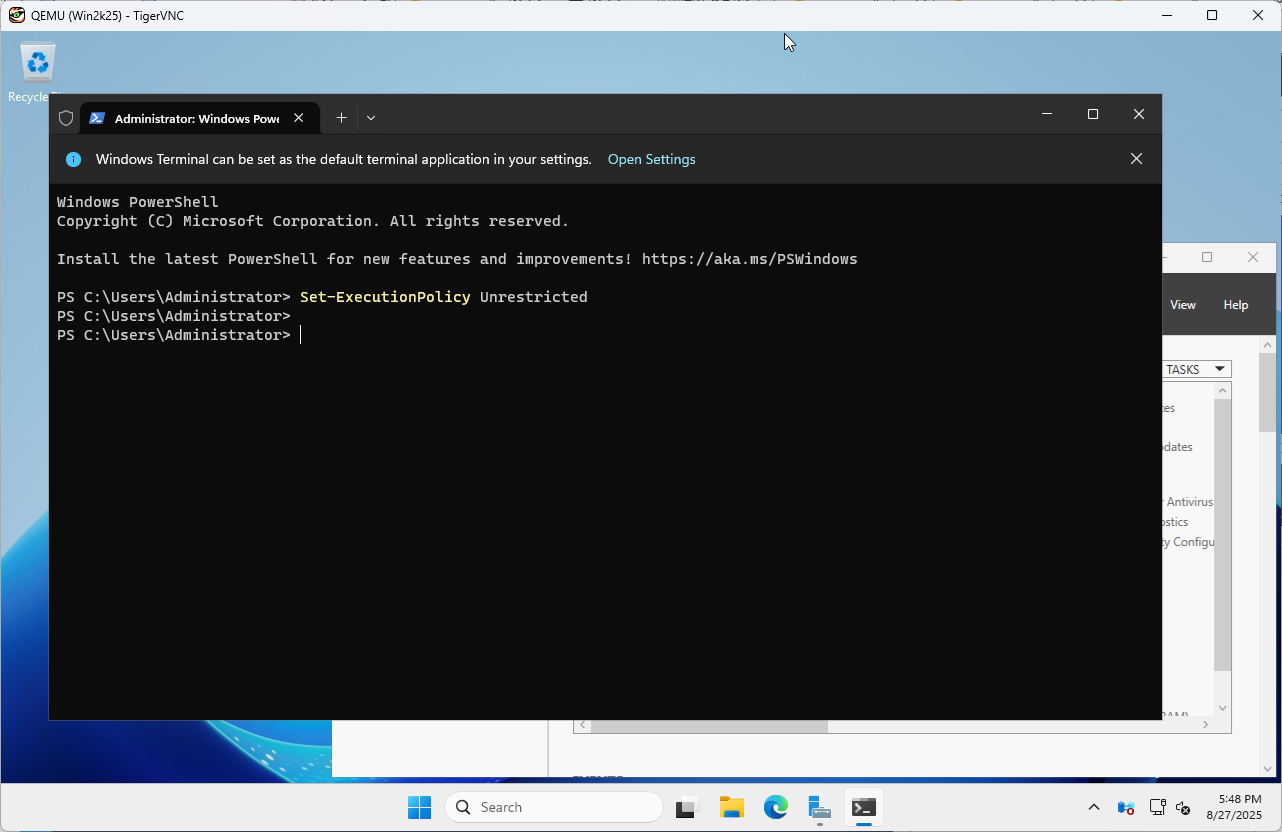
| [5] | Run PowerShell with admin privilege and change ExecutionPolicy to Unrestricted. PS > Set-ExecutionPolicy Unrestricted |
 |
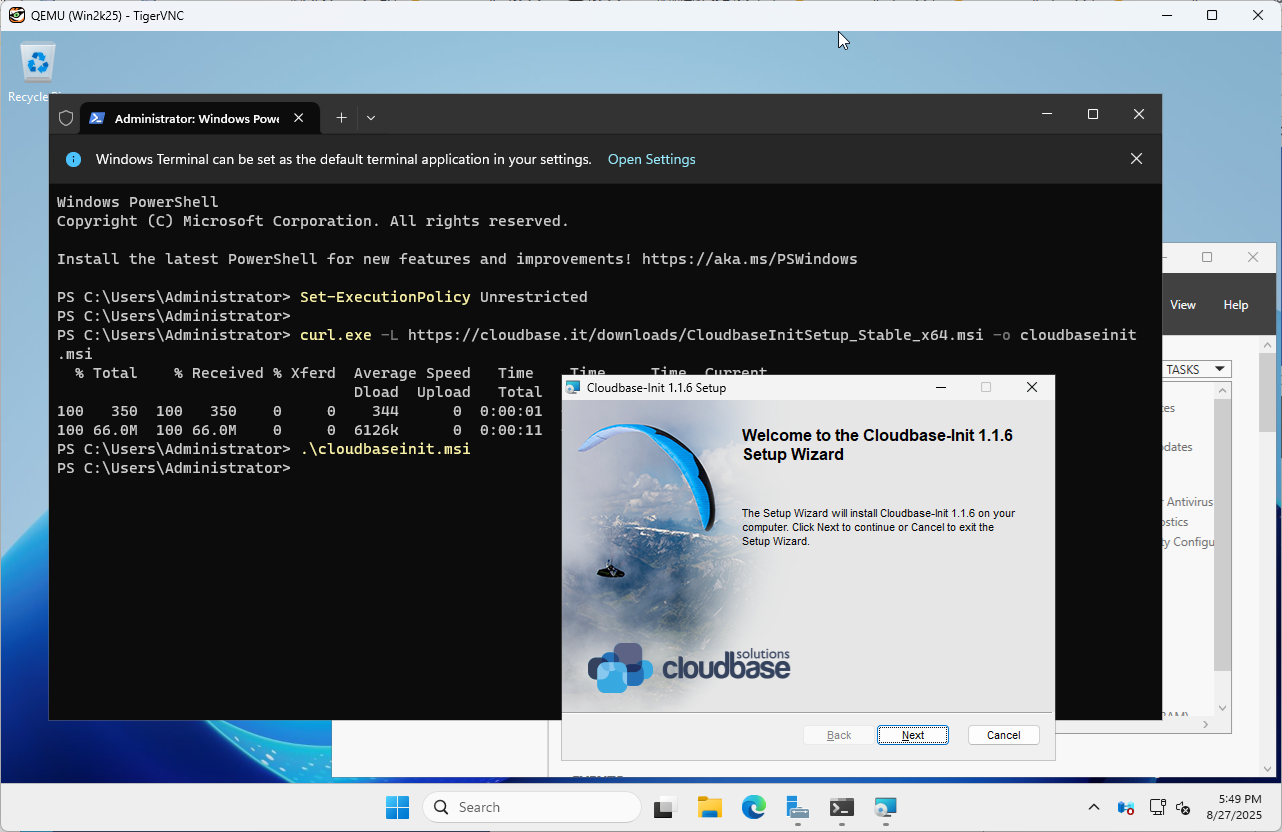
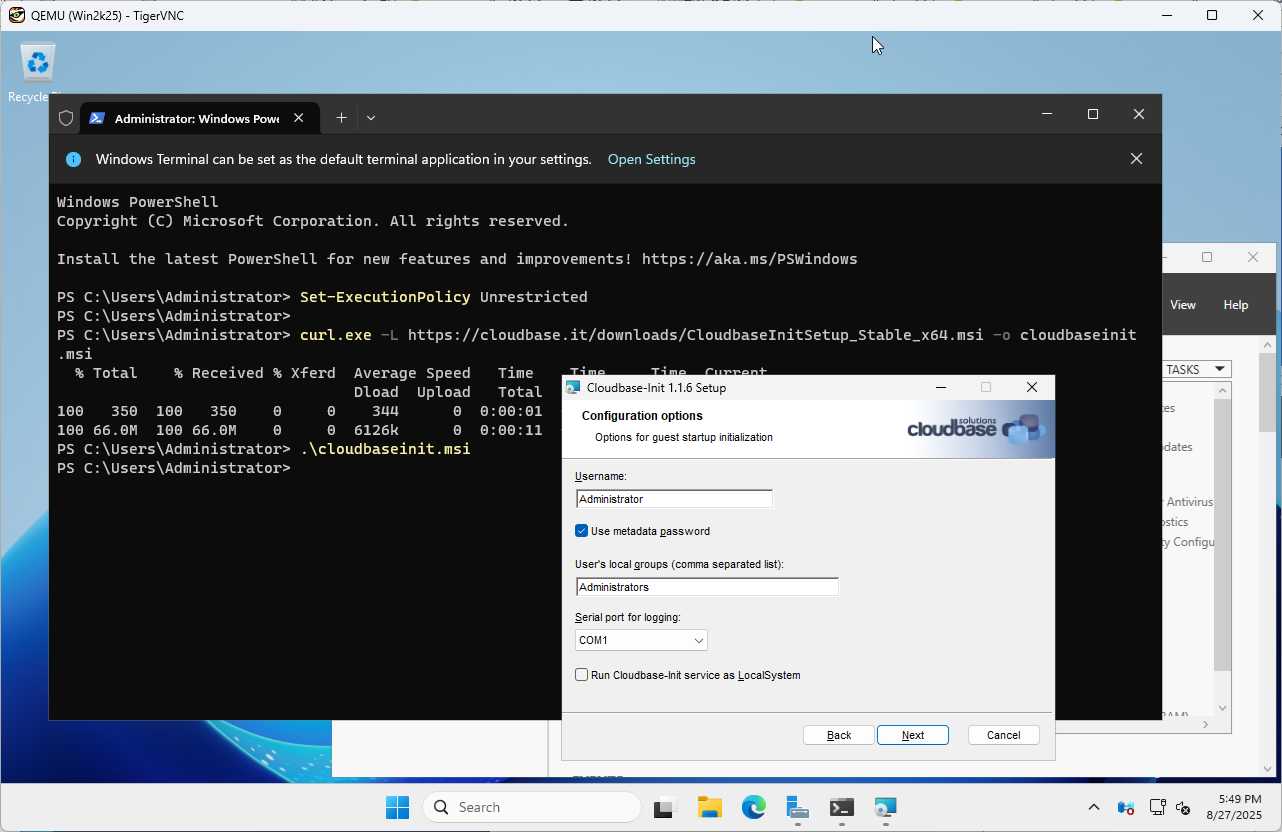
| [6] | Download and Install CloudbaseInit. PS > curl.exe -L https://cloudbase.it/downloads/CloudbaseInitSetup_Stable_x64.msi -o cloudbaseinit.msi PS > ./cloudbaseinit.msi |
 |
 |
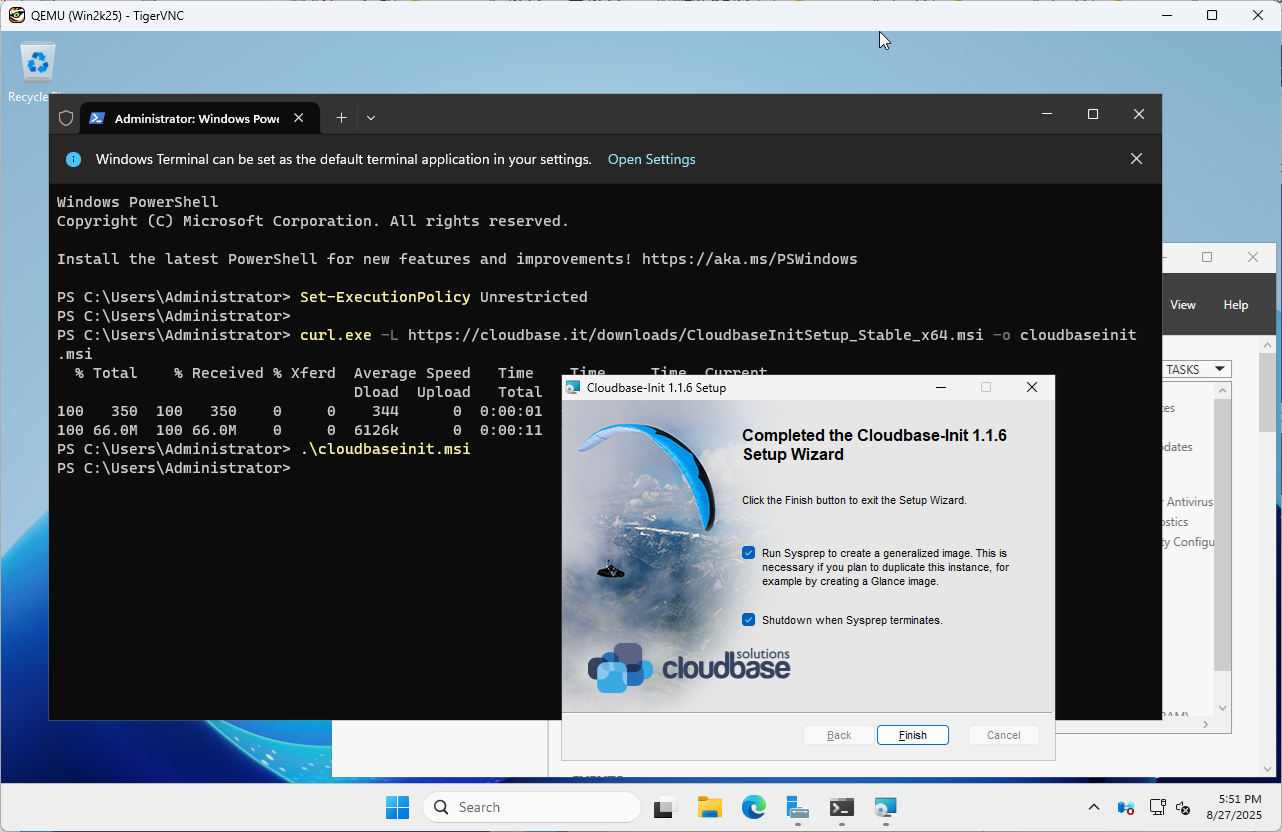
| [7] | Check boxes all to shutdown Windows after running Sysprep and Click the [Finish] button. |
 |
| [8] | Add Windows image to Glance. |
root@dlp ~(keystone)# openstack image create "Win2k25" --file /var/lib/libvirt/images/Win2k25.img --disk-format qcow2 --container-format bare --public # if you installed Windows with secure boot, add properties like follows root@dlp ~(keystone)# openstack image create "Win2k25" --file /var/lib/libvirt/images/Win2k25.img --disk-format qcow2 --container-format bare --public \ --property hw_firmware_type=uefi --property hw_machine_type=q35 --property os_secure_boot=optional |
| [9] | Create Windows instance with an Openstack user. |
| debian@dlp ~(keystone)$ openstack flavor list +----+-----------+-------+------+-----------+-------+-----------+ | ID | Name | RAM | Disk | Ephemeral | VCPUs | Is Public | +----+-----------+-------+------+-----------+-------+-----------+ | 1 | m1.tiny | 2048 | 10 | 0 | 1 | True | | 2 | m1.small | 4096 | 10 | 0 | 2 | True | | 3 | m1.medium | 8192 | 10 | 0 | 4 | True | | 4 | m1.large | 16384 | 10 | 0 | 8 | True | | 5 | m2.medium | 8192 | 10 | 10 | 4 | True | | 6 | m3.medium | 8192 | 50 | 0 | 4 | True | +----+-----------+-------+------+-----------+-------+-----------+debian@dlp ~(keystone)$ openstack image list +--------------------------------------+----------+--------+ | ID | Name | Status | +--------------------------------------+----------+--------+ | 33def798-3361-483b-9de1-8c2c6e1c840c | Debian13 | active | | 608cbdcc-804b-4e82-9a29-d518a1ad7be6 | Win2k25 | active | +--------------------------------------+----------+--------+debian@dlp ~(keystone)$ openstack security group list +--------------------------------------+------------+------------------------+----------------------------------+------+ | ID | Name | Description | Project | Tags | +--------------------------------------+------------+------------------------+----------------------------------+------+ | ae0ab53e-f713-42d5-9840-8932856db558 | default | Default security group | ecfa98ba82de421e8f16c3d862b5ab04 | [] | | bff3e8dd-5587-44f8-9d72-c1da4d944f85 | secgroup01 | secgroup01 | ecfa98ba82de421e8f16c3d862b5ab04 | [] | +--------------------------------------+------------+------------------------+----------------------------------+------+debian@dlp ~(keystone)$ openstack network list +--------------------------------------+------------+--------------------------------------+ | ID | Name | Subnets | +--------------------------------------+------------+--------------------------------------+ | c4512c41-5546-4278-ba53-31ba2f1526d0 | sharednet1 | b5a506f1-9e50-41d8-b552-1edb595da813 | +--------------------------------------+------------+--------------------------------------+ debian@dlp ~(keystone)$ netID=$(openstack network list | grep sharednet1 | awk '{ print $2 }') # [admin_pass=***] : set any Administrator password debian@dlp ~(keystone)$ openstack server create --flavor m3.medium --image Win2k25 --security-group secgroup01 --nic net-id=$netID --property admin_pass="P@ssw0rd01" Windows-2025 openstack server list +--------------------------------------+--------------+---------+-----------------------+----------+-----------+ | ID | Name | Status | Networks | Image | Flavor | +--------------------------------------+--------------+---------+-----------------------+----------+-----------+ | d73ebaa5-c4dc-43ce-b330-ea64758c5526 | Windows-2025 | ACTIVE | sharednet1=10.0.0.221 | Win2k25 | m3.medium | | 5eaa74ea-6fc6-4c24-b758-37eaad533c88 | Debian-13 | SHUTOFF | sharednet1=10.0.0.247 | Debian13 | m1.small | +--------------------------------------+--------------+---------+-----------------------+----------+-----------+debian@dlp ~(keystone)$ openstack console url show Windows-2025 +----------+-----------------------------------------------------------------------------------------------+ | Field | Value | +----------+-----------------------------------------------------------------------------------------------+ | protocol | vnc | | type | novnc | | url | https://dlp.srv.world:6080/vnc_auto.html?path=%3Ftoken%3Da446e856-3999-4fd4-bb98-2749c37c6c6e | +----------+-----------------------------------------------------------------------------------------------+ |
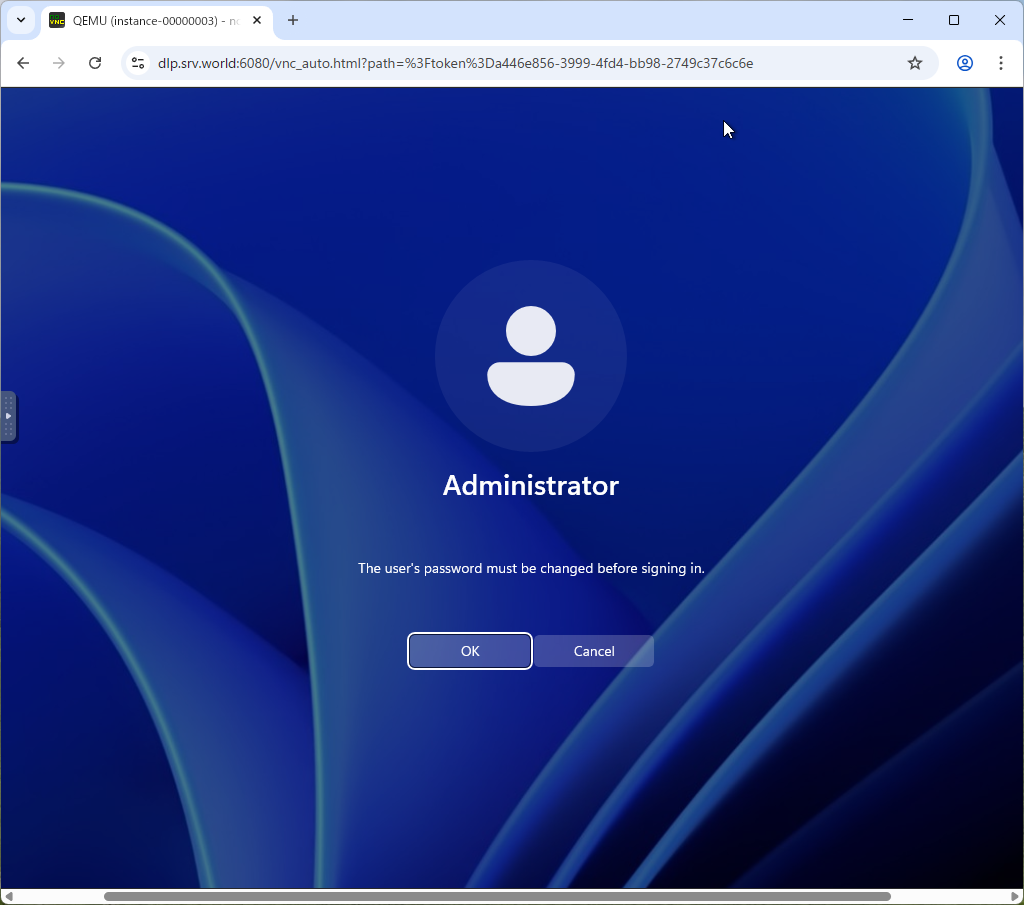
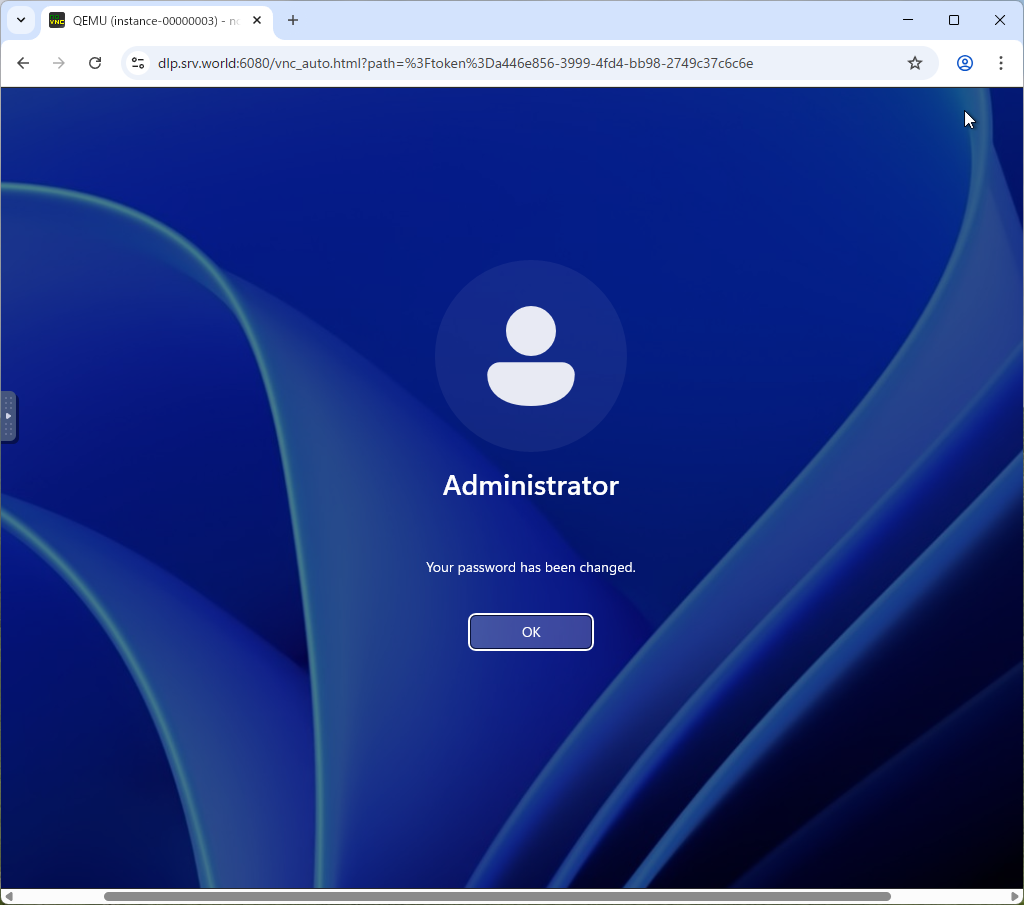
| [10] | It needs to change admin password when initial logon. The current password is the one you set on [openstack server create] command. |
 |
 |
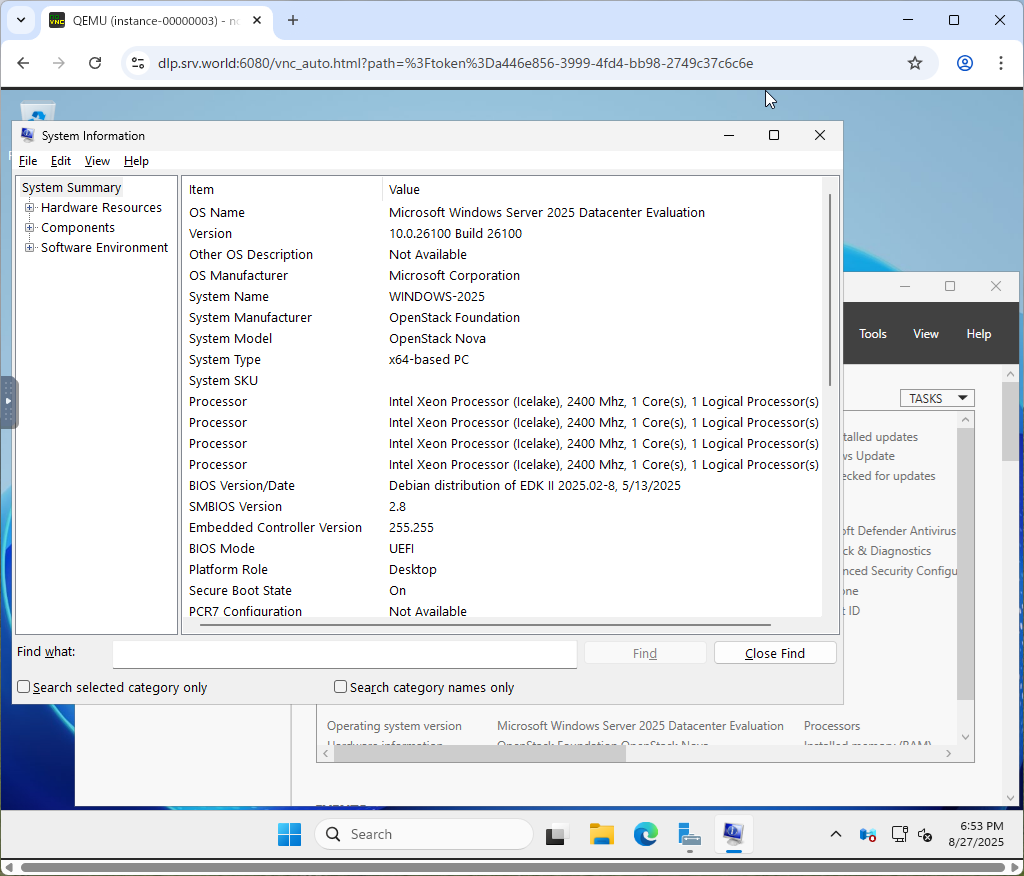
| [11] | That's OK if you logon successfully after changing password. |
 |

No comments:
Post a Comment