KVM : Create Virtual Machine (GUI) |
If you installed Desktop Environment, it's possible to create a Virtual machine on GUI. | |
| [1] | Install required packages. |
| root@dlp:~# apt -y install virt-manager qemu-system |
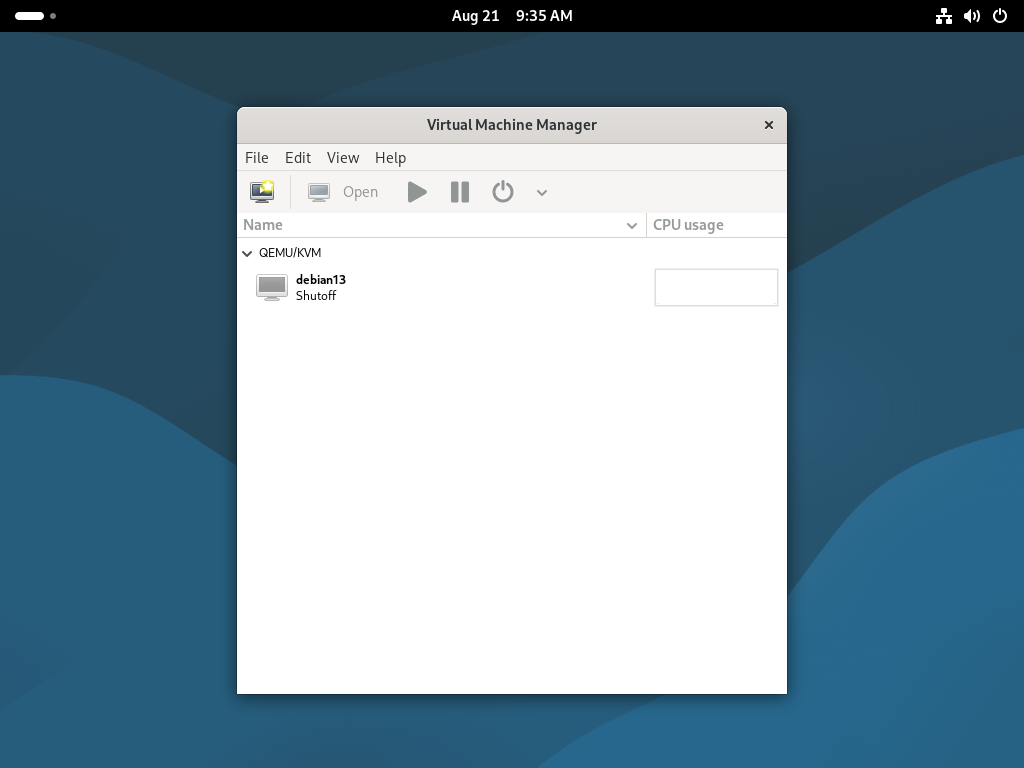
| [2] | Start Desktop and run [Virtual Machine Manager] with root privilege, then, Click [New] button (it's just the PC-icon on upper-left) and open a wizard to create a new Virtual Machine. |
 |
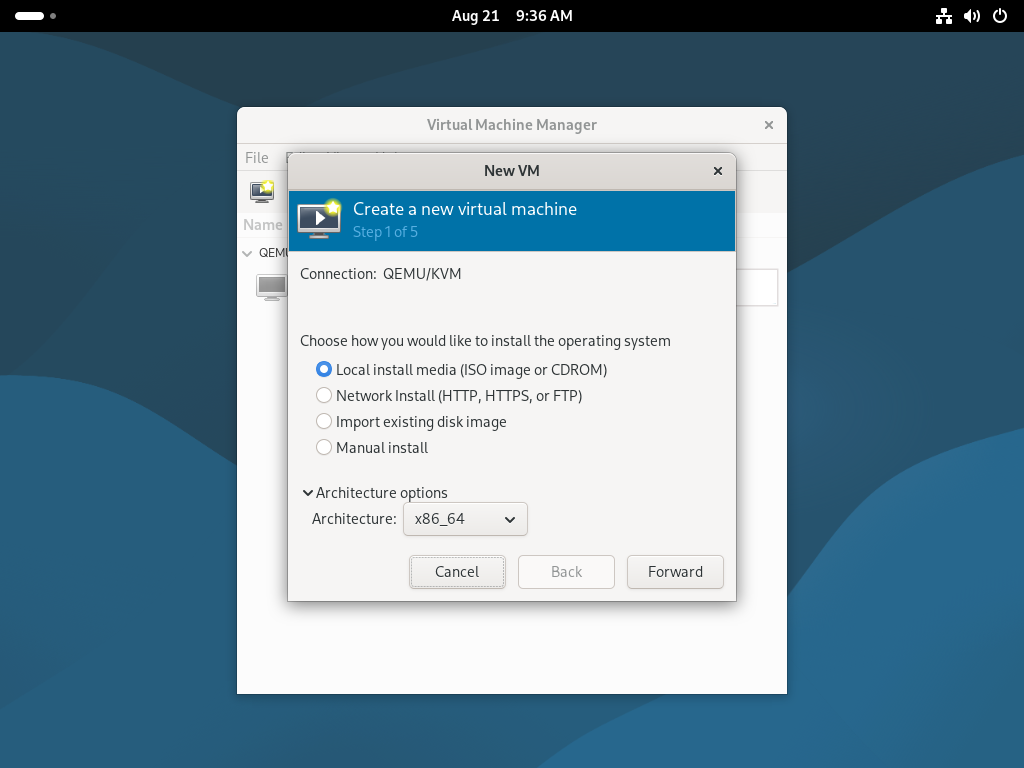
| [3] | Specify the installation source. It selects local media on this example. |
 |
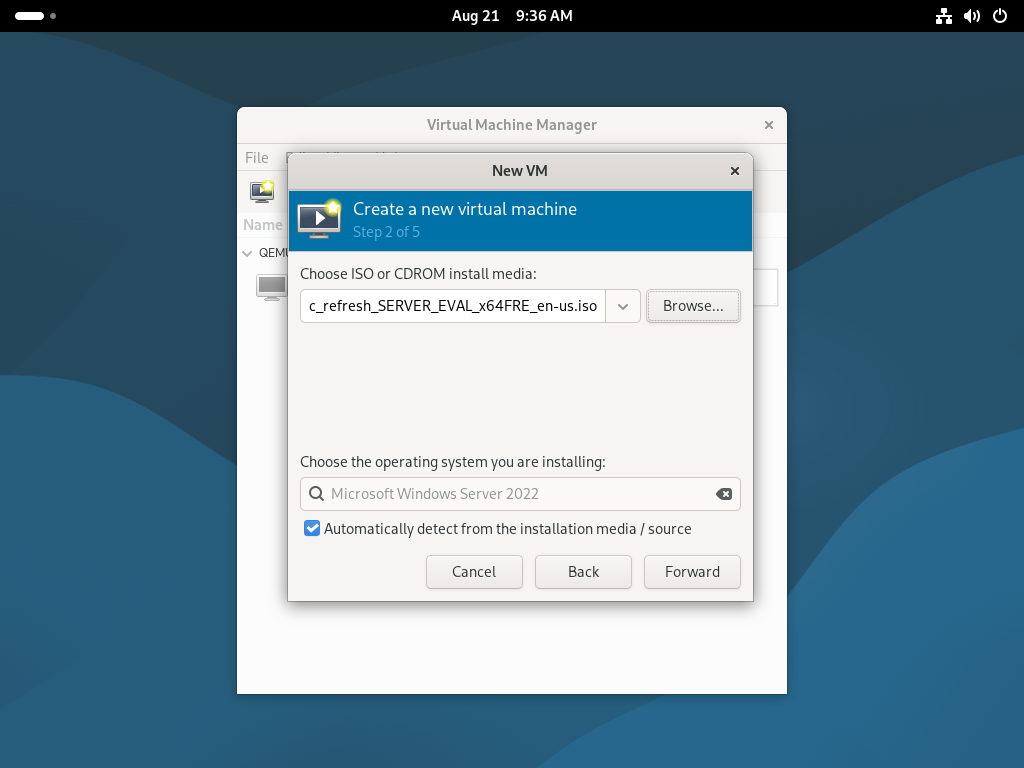
| [4] | Select Installation media or ISO image, and specify OS type and version. Generally OS type and version are detected automatically from the installation media. |
 |
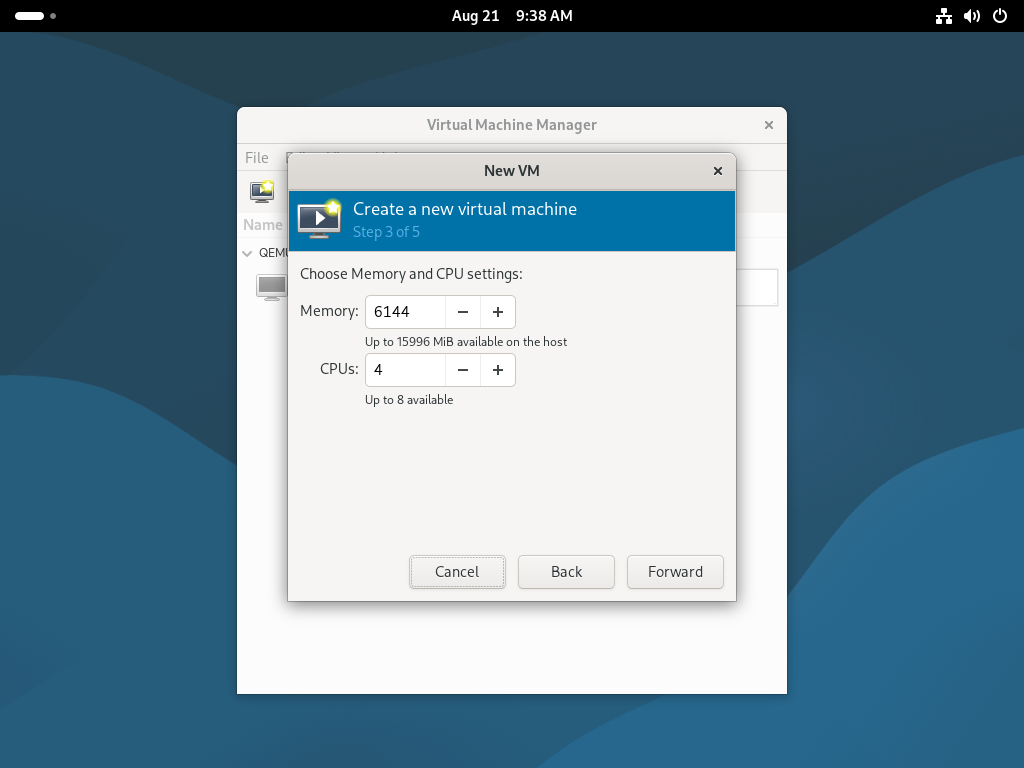
| [5] | Specify the amount of memory and number of virtual CPUs. |
 |
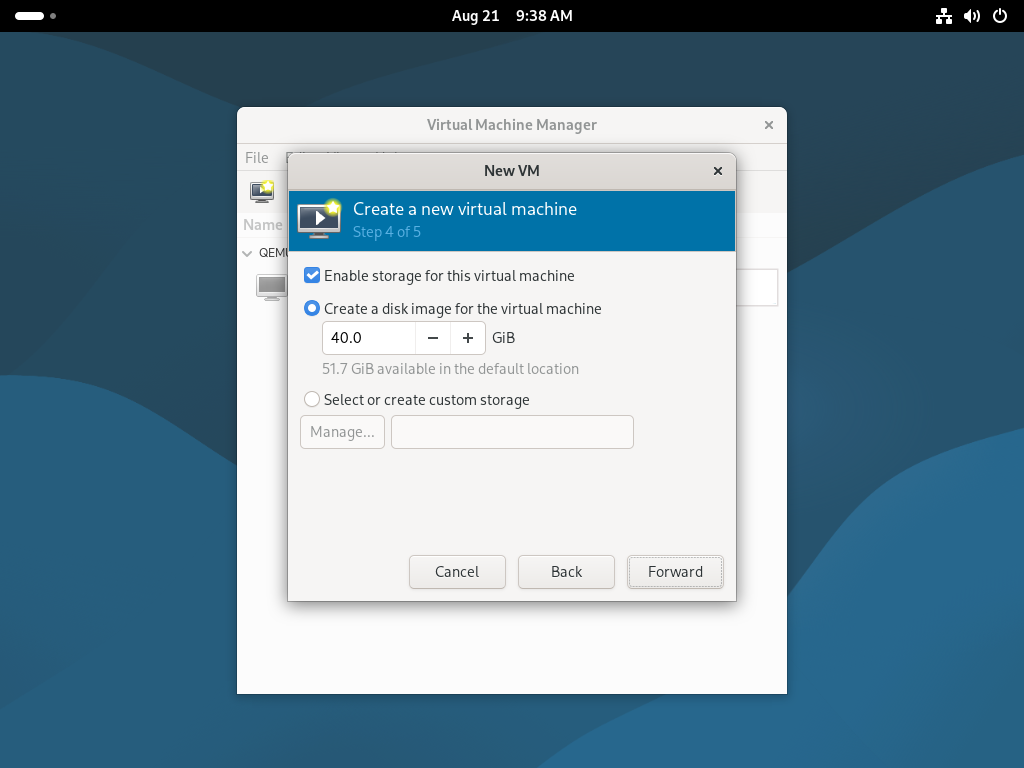
| [6] | Specify the amount of disk, and also the Path of it if you set the custom Path. (default is [/var/lib/libvirt/images]) |
 |
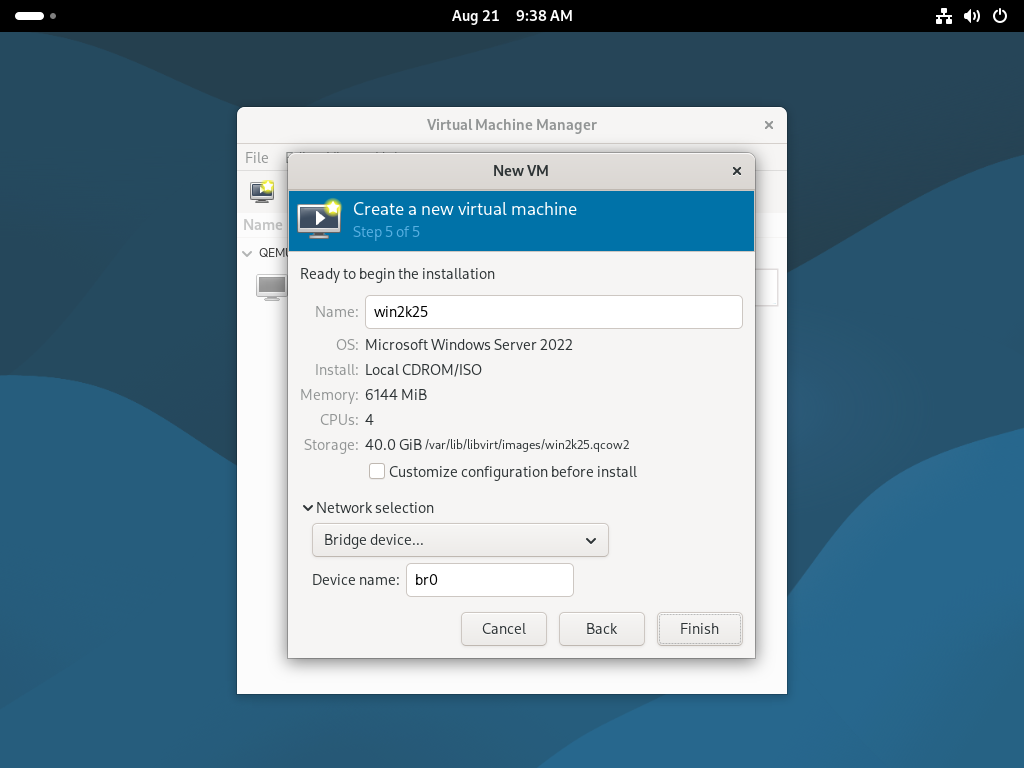
| [7] | Set Virtual Machine's name and also confirm selections. |
 |
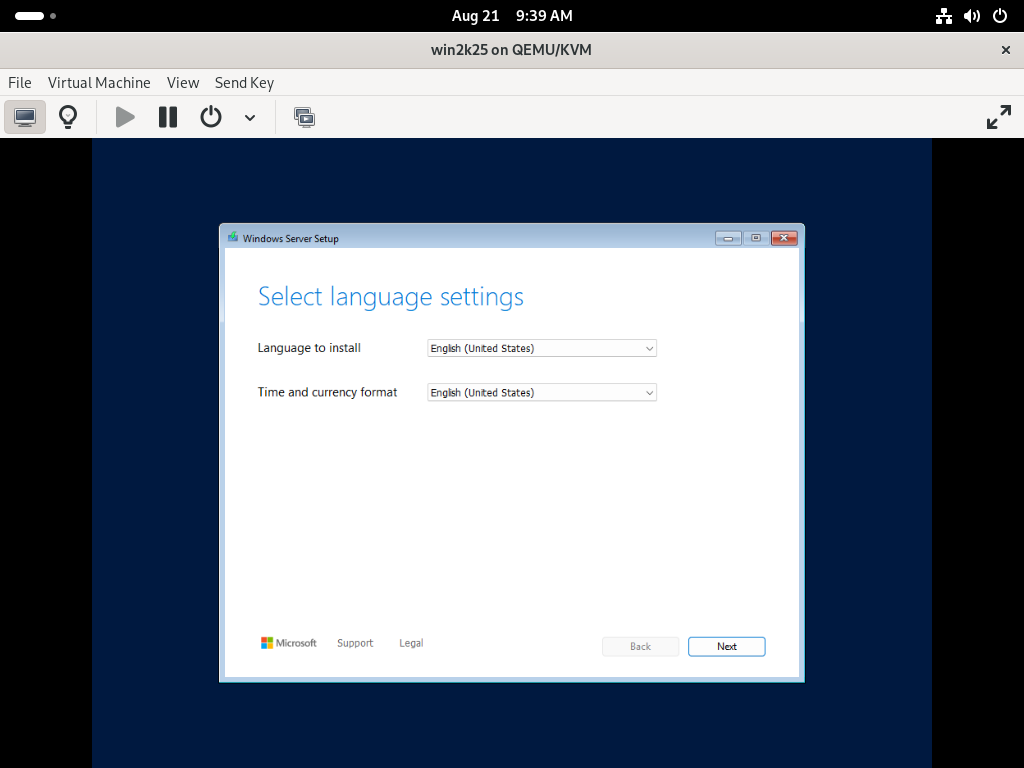
| [8] | Windows Server 2025 installer starts. |
 |
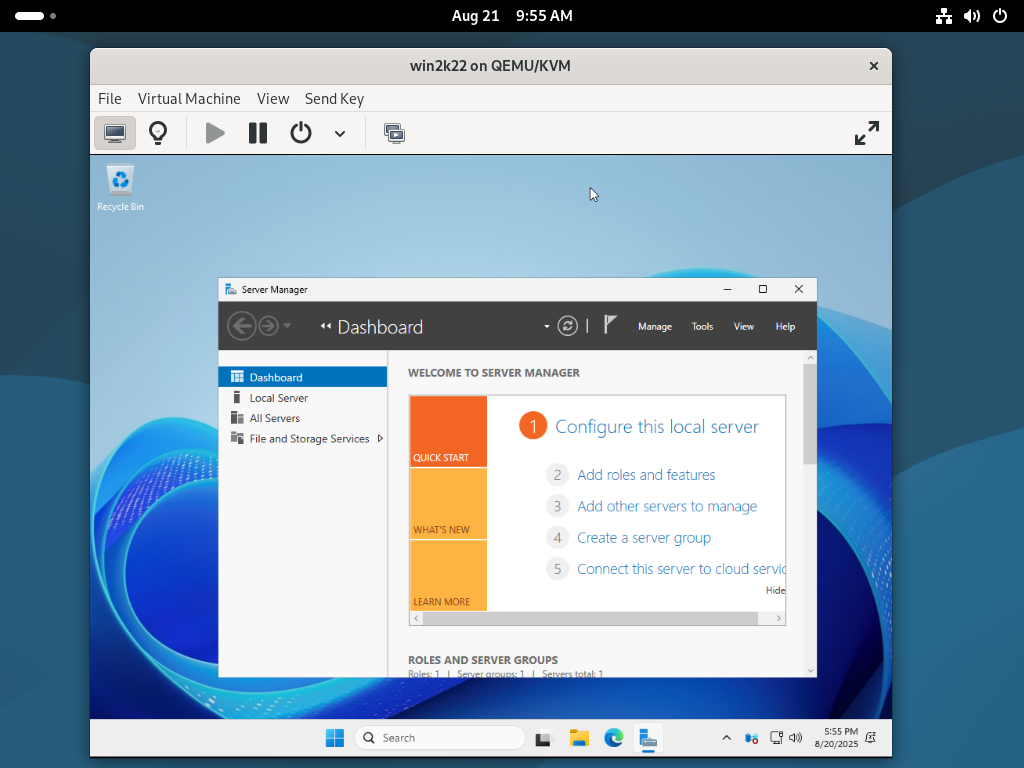
| [9] | Installation finished and Windows Server 2025 is running now. |
 |

No comments:
Post a Comment