OpenSSH : SSH Key-Pair Authentication |
Configure SSH server to login with Key-Pair Authentication. | |
| [1] | Key pairs are created by each user, so the user who creates the key pair log in to any client computer and work as that user. |
# create key-pair debian@client:~$ ssh-keygen Generating public/private ed25519 key pair. Enter file in which to save the key (/home/debian/.ssh/id_ed25519): # Enter or input changes if you want Enter passphrase for "/home/debian/.ssh/id_ed25519" (empty for no passphrase): # set passphrase (if set no passphrase, Enter with empty) Enter same passphrase again: Your identification has been saved in /home/debian/.ssh/id_ed25519 Your public key has been saved in /home/debian/.ssh/id_ed25519.pub The key fingerprint is: SHA256:DgSUdzX8e5T2xKy6YV9juS610Z8YtltX2Hw6XFJcgUQ debian@client.srv.world The key's randomart image is: ..... .....debian@client:~$ ll ~/.ssh total 16 -rw------- 1 debian debian 444 Aug 11 09:18 id_ed25519 -rw-r--r-- 1 debian debian 95 Aug 11 09:18 id_ed25519.pub -rw------- 1 debian debian 978 Aug 11 08:58 known_hosts -rw-r--r-- 1 debian debian 142 Aug 11 08:58 known_hosts.old # copy the SSH public key you created to the server you want to log in to debian@client:~$ ssh-copy-id dlp.srv.world /usr/bin/ssh-copy-id: INFO: Source of key(s) to be installed: "/home/debian/.ssh/id_ed25519.pub" /usr/bin/ssh-copy-id: INFO: attempting to log in with the new key(s), to filter out any that are already installed /usr/bin/ssh-copy-id: INFO: 1 key(s) remain to be installed -- if you are prompted now it is to install the new keys debian@dlp.srv.world's password: Number of key(s) added: 1 Now try logging into the machine, with: "ssh 'dlp.srv.world'" and check to make sure that only the key(s) you wanted were added. # verify whether you can log in to the server to which you copied the public key using key authentication debian@client:~$ ssh dlp.srv.world hostname Enter passphrase for key '/home/debian/.ssh/id_ed25519': # if you set a passphrase, enter it
dlp.srv.world
|
| [2] | If you use key pair authentication, you can make your server more secure by disabling password authentication on the SSH server side as follows. |
root@dlp:~# vi /etc/ssh/sshd_config # line 57, 64 : uncomment and change to [no] PasswordAuthentication no ..... ..... KbdInteractiveAuthentication no systemctl restart ssh |
SSH Key-Pair Authentication on Windows Client #1 |
This is the example to login to SSH server from Windows Client. | |
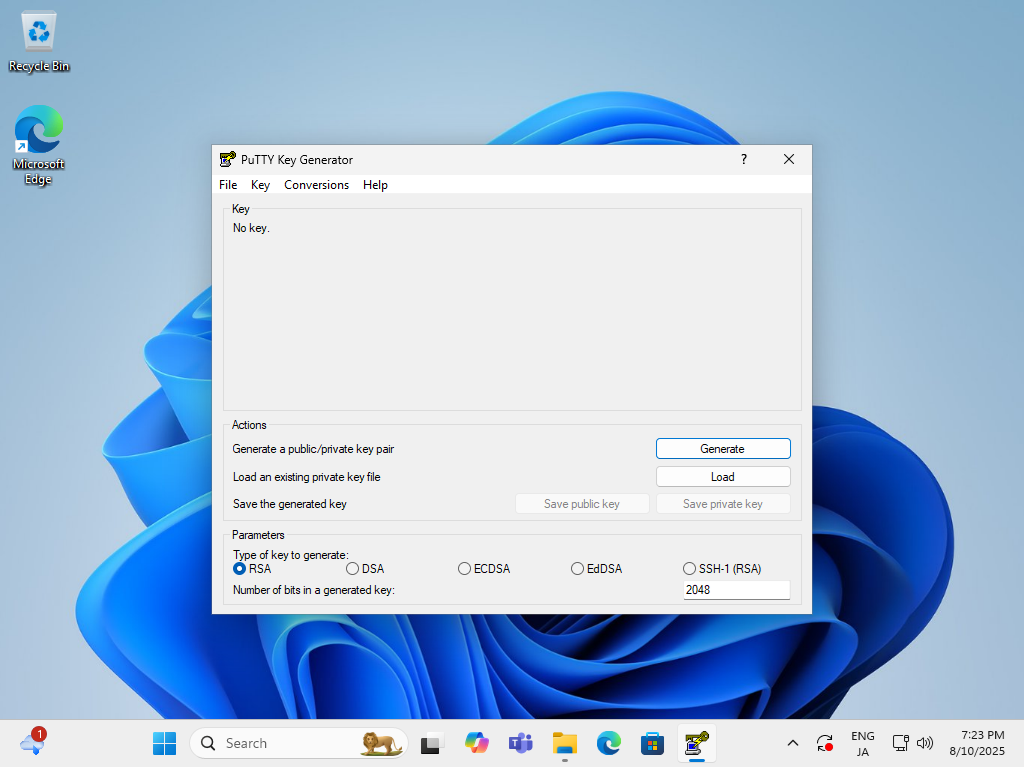
| [3] | Run [Puttygen.exe] that is included in [Putty]. (placed in the folder [Putty.exe] is also placed) If not included, Download it from official site (www.chiark.greenend.org.uk/~sgtatham/putty/). After starting [Puttygen.exe], Click [Load] button on the following window. |
 |
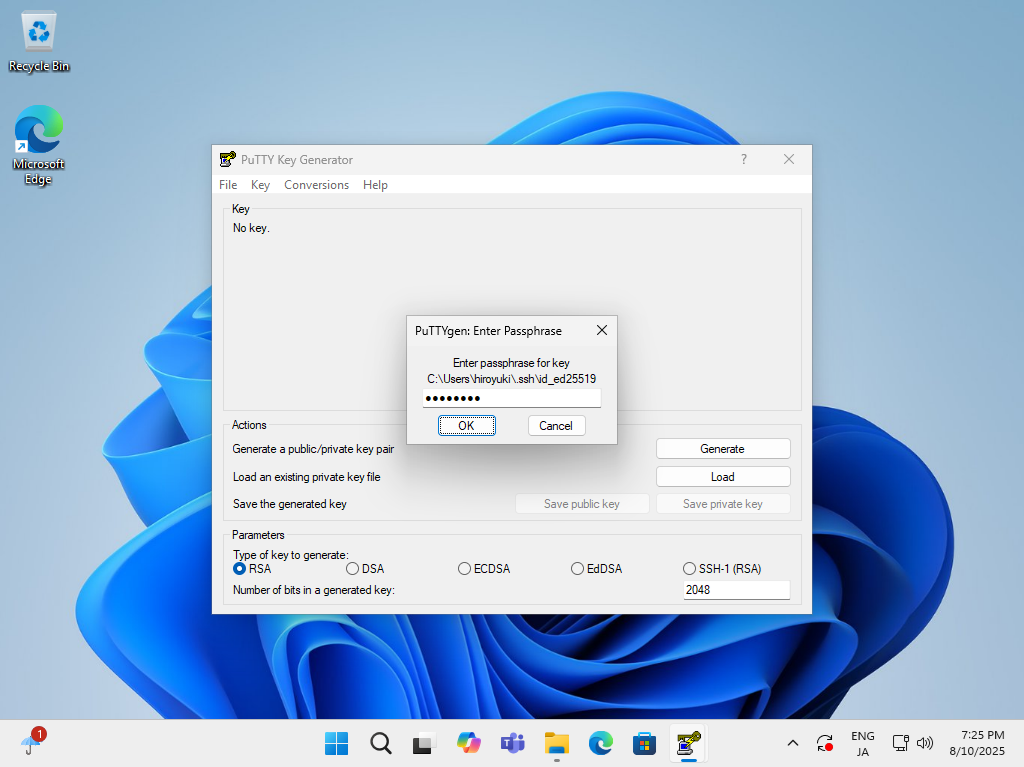
| [4] | Specify the private key that you transferred from SSH server, then passphrase is required like follows, answer it. (if not set passphrase, this step is skipped) |
 |
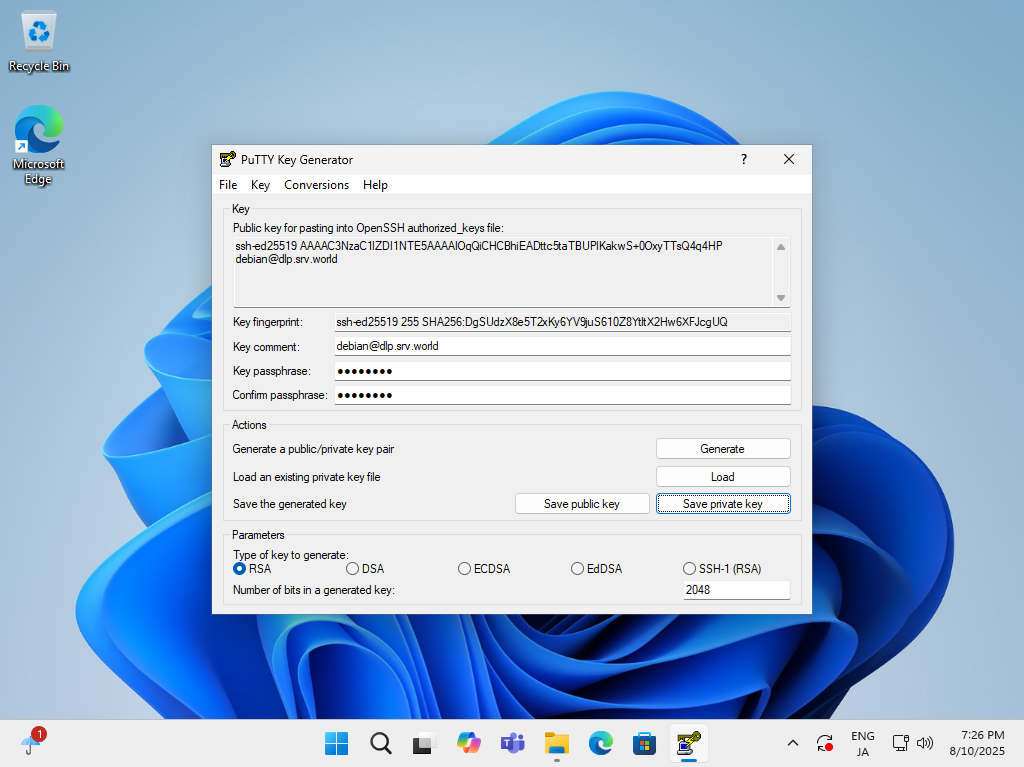
| [5] | Click [Save private key] button to save it under a folder you like with any file name you like. |
 |
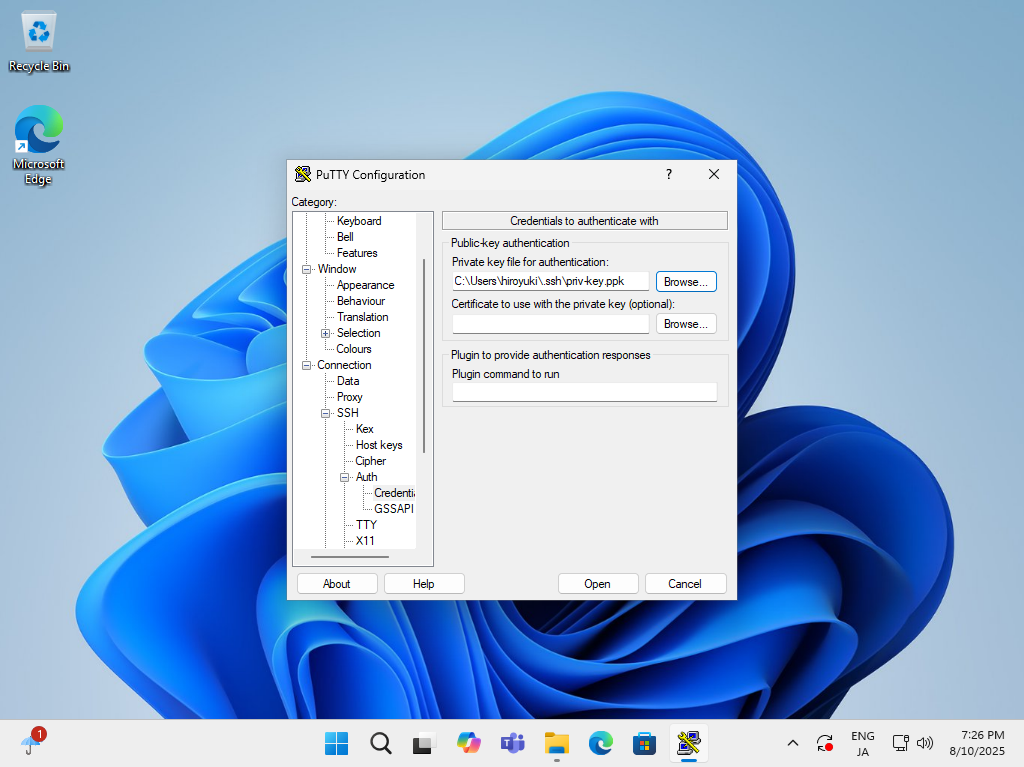
| [6] | Start Putty and Open [Connection] - [SSH] - [Auth] - [Credentials] on the left pane, then specify your private key on the [Private key file] field. |
 |
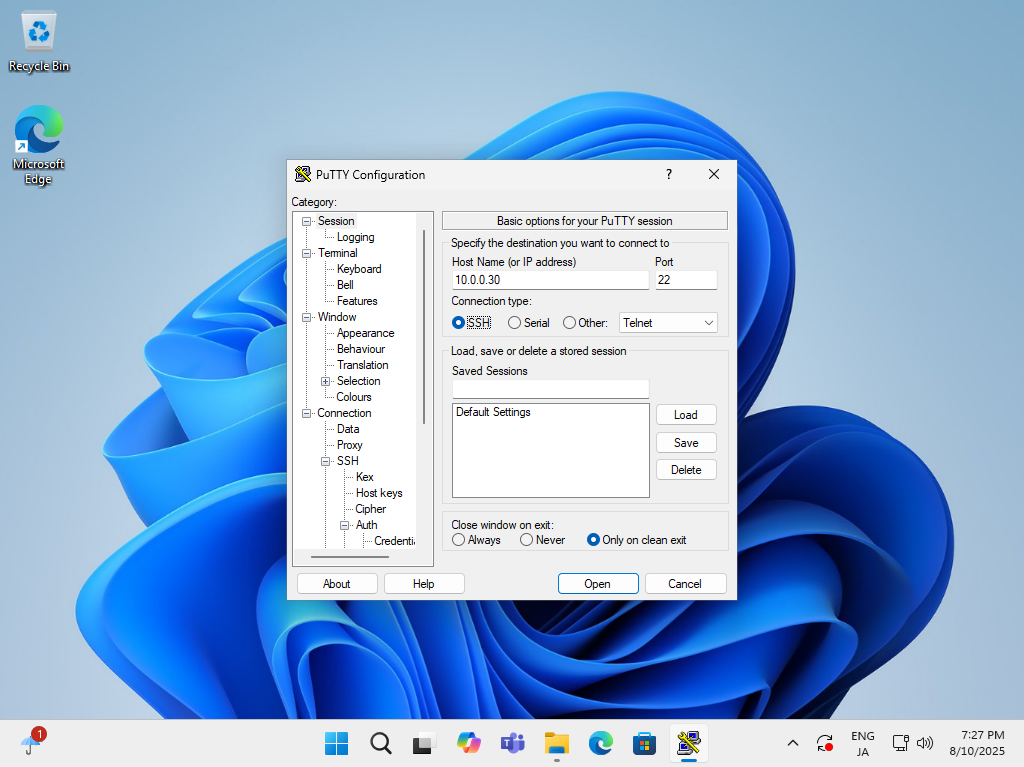
| [7] | Back to the [Session] on the left pane and specify your SSH server host to Connect. |
 |
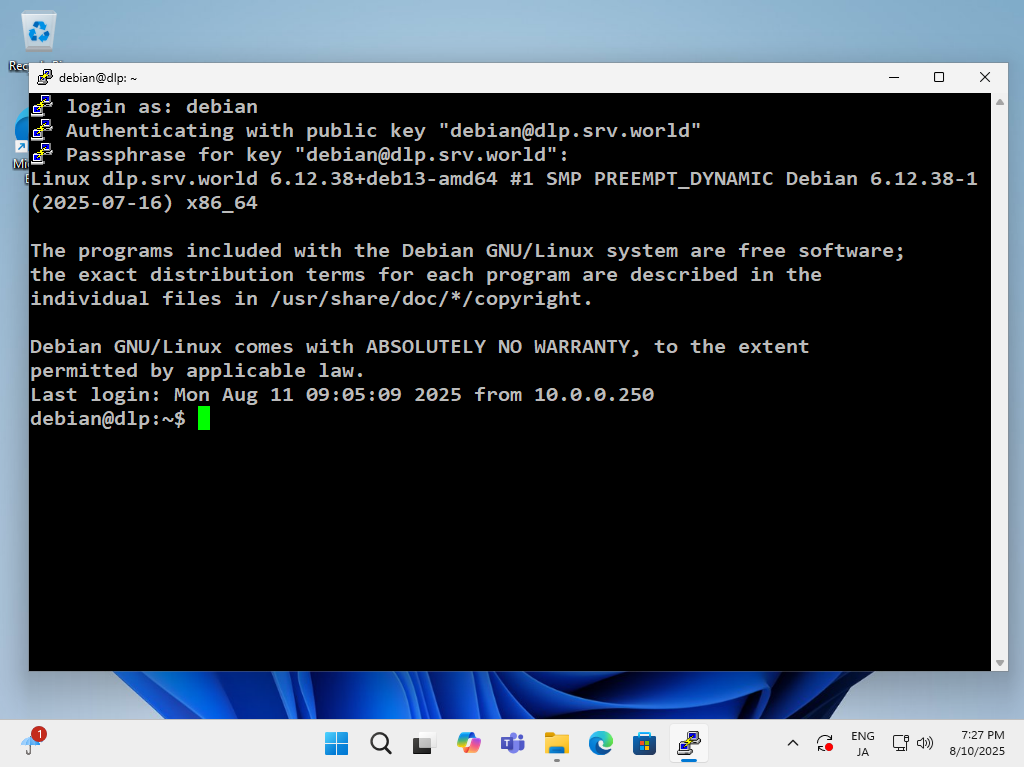
| [8] | When SSH key-pair is set, the passphrase if it is set is required to login like follows, then answer it. |
 |
SSH Key-Pair Authentication on Windows #2 |
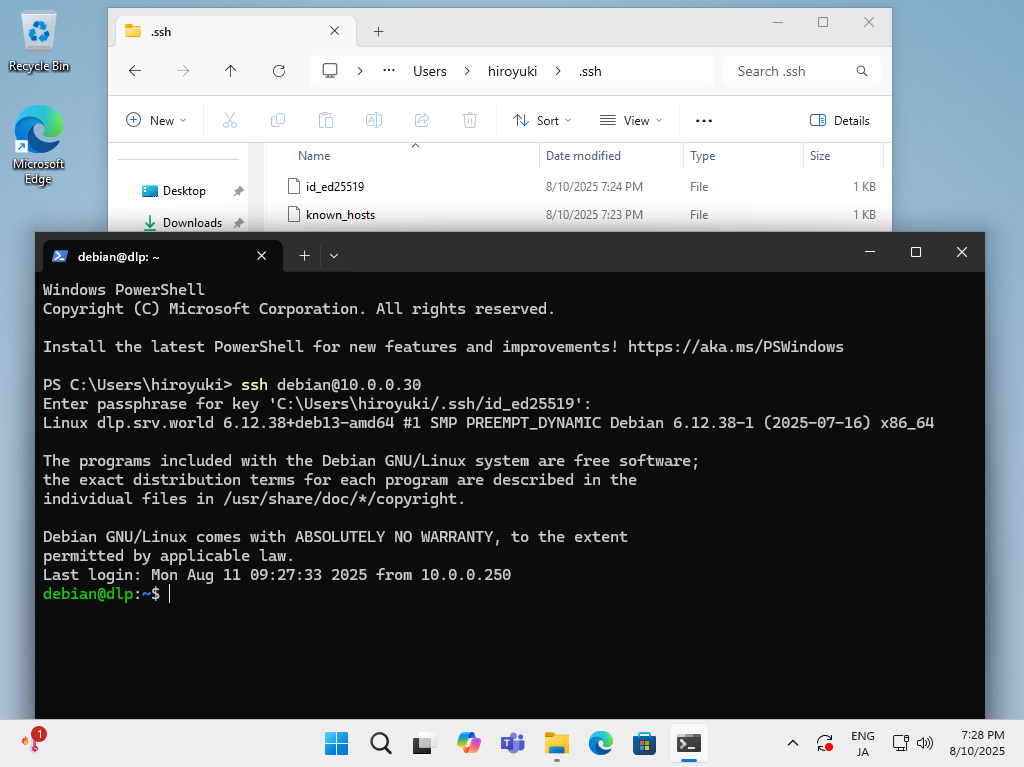
| [9] | On Windows 11, OpenSSH Client has been implemented as a Windows feature, so it's possible to authenticate with SSH Key-Pair without Putty and other 3rd party softwares. Transfer your private key to your Windows 11 and put it under the [(logon user home).ssh] folder like follows, then it's ready to use Key-Pair authentication. |
 |
Matched Content

No comments:
Post a Comment