Desktop Environment : GNOME Desktop |
If you installed CentOS Stream without GUI but now need GUI because of GUI required applications and so on, Install Desktop Environment like follows. | |
| [1] | Install GNOME Desktop Environment on this example. |
| [root@dlp ~]# dnf -y group install "Server with GUI" |
| [2] | After installing Desktop, to start Desktop session on CUI, re-login with a common user and run like follows. |
| [cent@dlp ~]$ startx |
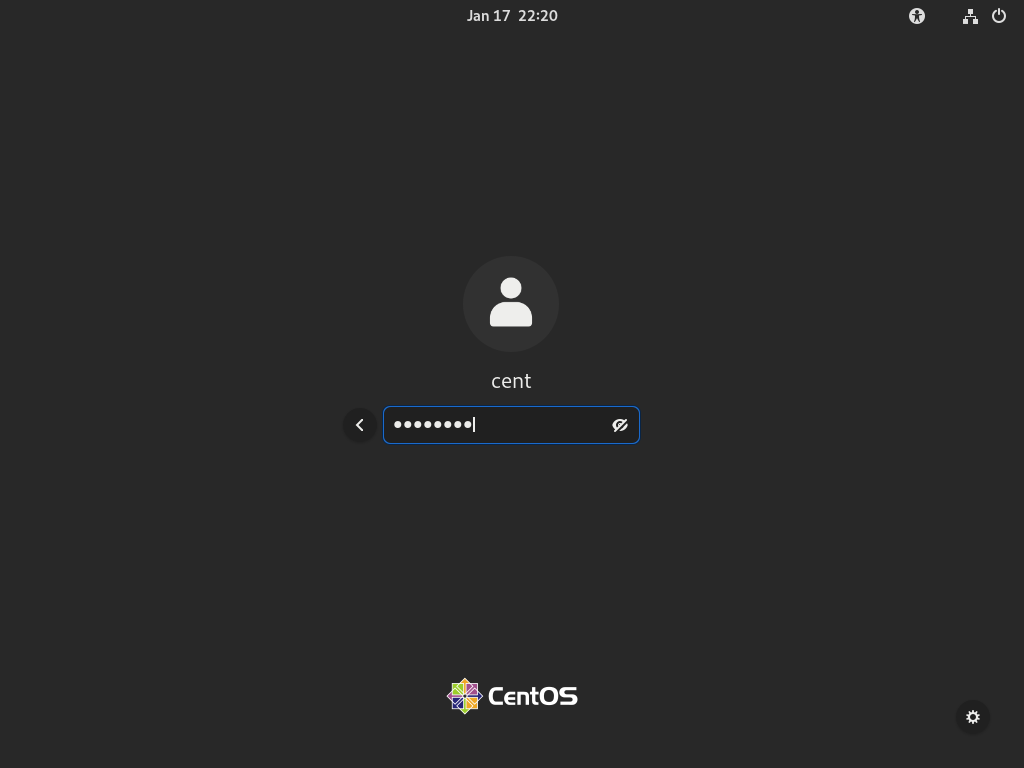
| [3] | Or if you would like to change your System to Graphical Login as default, change setting like here and restart computer. Then, Graphical Login screen is shown like follows. |
 |
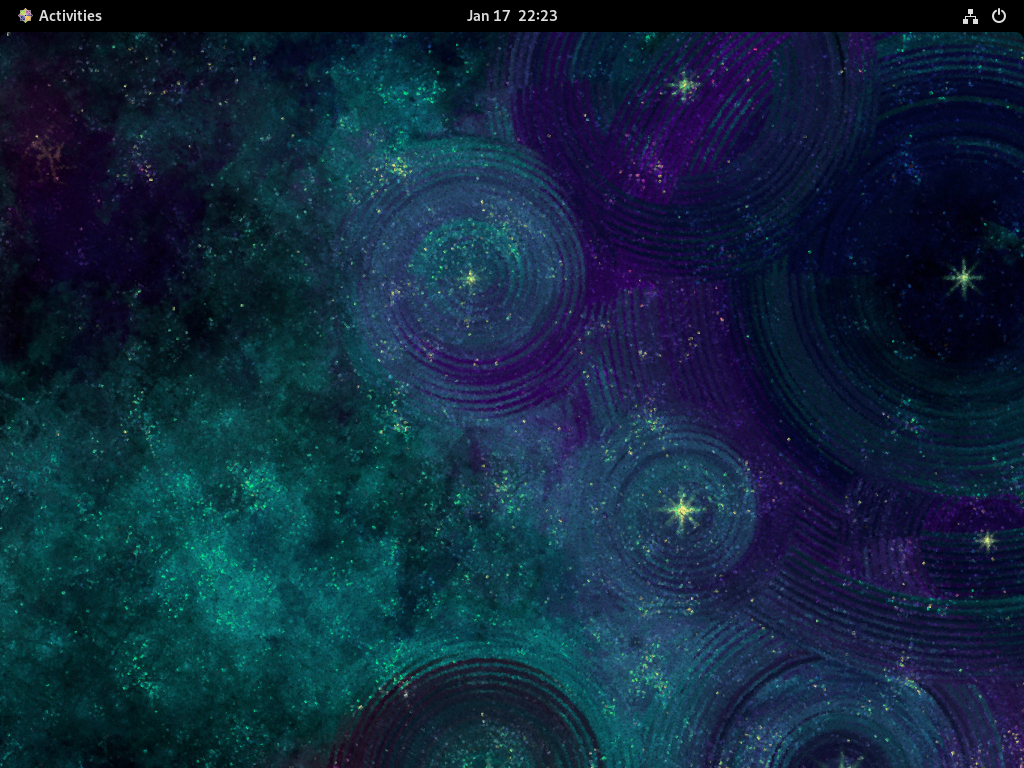
| [4] | When initial login for each user, they should select language or keyboard settings. After configuring initial login settings, GNOME Desktop session starts like follows. |
 |
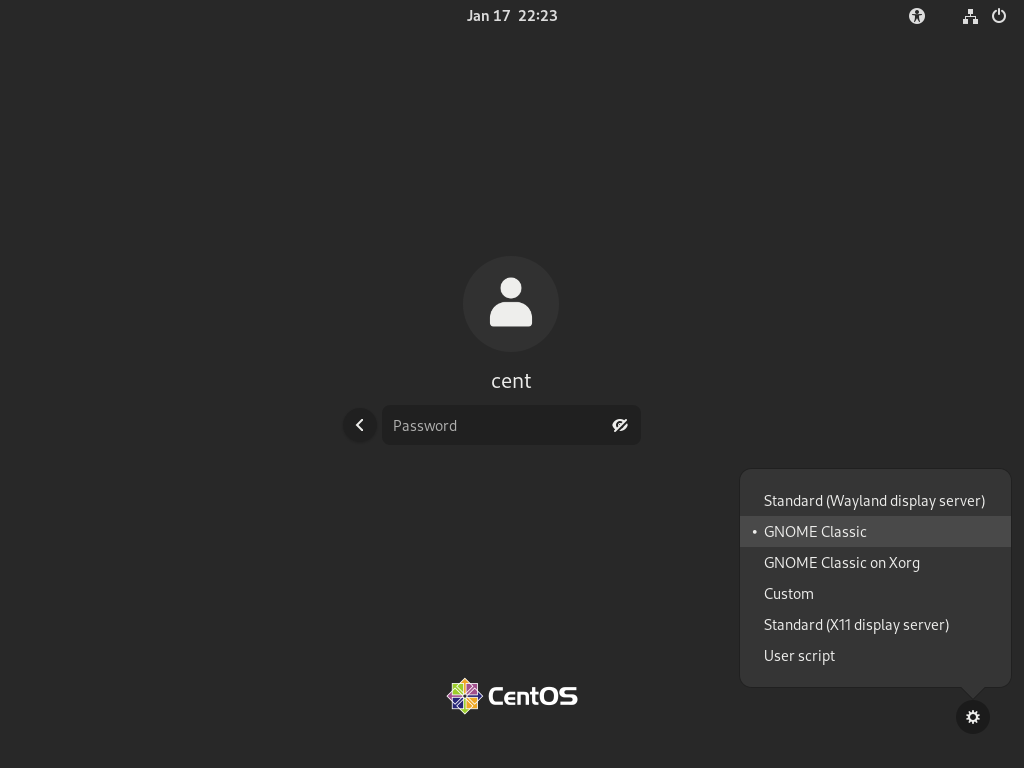
| [5] | On RHEL 9 / CentOS Stream 9, GNOME Shell is set default, however if you would like to change to Classic mode like RHEL 7 / CentOS 7, then Click the icon that is placed on the left side of [Sign In] button on the login screen and Select [Classic] on the selection like follows. |
 |
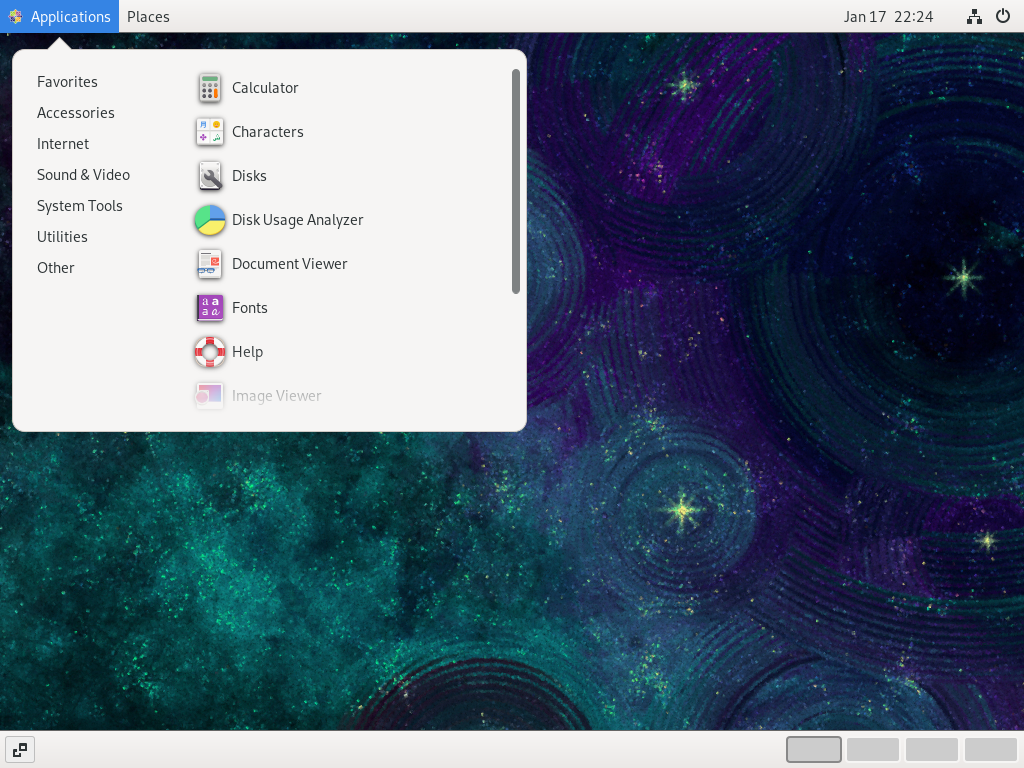
| [6] | GNOME Desktop Classic Session starts. |
 |

No comments:
Post a Comment